

One of the most useful features of OneDrive for Business is the ability to share items with both users inside your organization and external users. However, sharing many files over time can make it difficult to keep track of what you’ve shared and with whom. You may even decide that you no longer want certain documents to remain shared and want to remove access. In this article, we’ll look at how to review the items you’ve shared and how to revoke that access when needed.
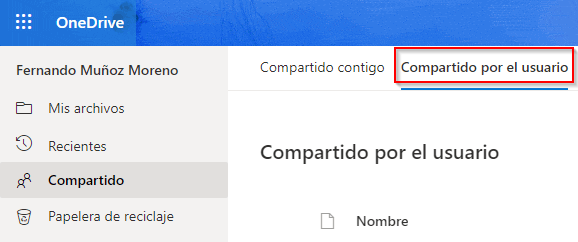
To get started, go to the Microsoft 365 portal and open the OneDrive application. Once inside, select “Shared” from the menu on the left.

There you will see all the documents that have been shared with you by other users, as well as the ones you have shared yourself. Select “Shared by you” to view the items you have shared.
Now you can go to any item and click the three dots (…). Then select Manage Access.

Here you can see who the item is shared with and whether any access links have been created. From this window, you can make decisions accordingly and remove users or links that you no longer want to keep active. As you can see, this allows you to control the items you have shared, revoke sharing when necessary, and further limit access to your files from other users.

As we can see, Microsoft 365 offers powerful tools that help us manage and organize our documents effectively. One of these capabilities is the ability to control how our files are shared and to revoke access whenever necessary. If you would like more information about Microsoft 365 or need assistance, feel free to contact us — we’ll be happy to help.