

If you’re a Microsoft 365 user, you’ve probably wondered at some point how to work with Word, Excel, PowerPoint, or OneNote directly from your browser. This feature is especially useful if you don’t have Office installed on your device or if you work across multiple devices. In this guide, we explain how to use Office apps on the web in a simple and efficient way.
Which Microsoft 365 Licenses Allow You to Use Office on the Web?
The features you can access depend on the type of Microsoft 365 (Office 365) license you have:
- Microsoft 365 Business Basic: This plan does not include local installation of Office, but it allows you to use the web versions of Word, Excel, PowerPoint, and OneNote from any browser. It’s ideal for flexible and collaborative environments.
- Microsoft 365 Business Standard: This plan includes both the web applications and the option to install Office on your PC or Mac. It lets you work offline, sync your documents, and enjoy the full desktop experience.
How to Access Microsoft Office Web Apps?
To start using Office apps directly from your browser:
- Go to www.office.com
- Sign in with your Microsoft 365 account (business or education).
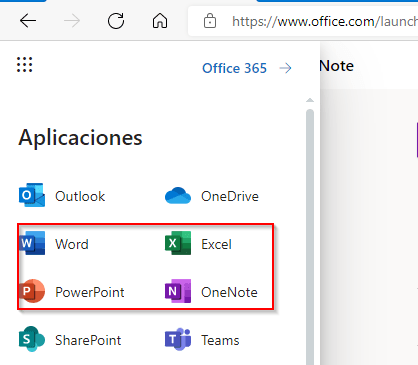
- Click the app launcher and select the application you need: Word, Excel, PowerPoint, OneNote, etc.
Tip: To stay safer online, Microsoft 365 uses continuous monitoring and cross‑device alerts through Microsoft Defender.
What Can You Do with the Web Versions of Word, Excel, or PowerPoint?

The Office web applications are highly capable and allow you to:
- Create and edit documents.
- Access files stored in OneDrive.
- Collaborate in real time with other users.
- Save changes automatically.
- Pick up where you left off thanks to the “Pick up where you left” feature.
If you need to continue working on your file using the installed desktop application, you can click the “Open in Desktop App” button. This will open the document in Word, Excel, or PowerPoint installed on your PC, as long as your license includes desktop versions.

Requirements to Open Documents in the Desktop App
To use this option, you must:
- Have a Microsoft 365 Business Standard license or higher.
- Have the Office desktop applications installed on your device.
Thanks to automatic synchronization between Office on the web and the desktop version, all changes are updated seamlessly without losing any information.
Advantages of Using Office in the Cloud
Using the Office web applications offers:
- Access from any device with a browser.
- Less dependence on hardware or operating system.
- Integration with OneDrive and SharePoint for for secure file storage.
- Enhanced collaboration with tools like Microsoft Teams.
Additionally, eligible educators and students can access Microsoft 365 tools for free, enabling learning from anywhere.
Do You Have Questions About Microsoft 365 and Its Licenses?
At ABD IT Consulting and Solutions, we are specialists in Microsoft solutions. We can help you choose the Microsoft 365 subscription that best fits your company’s needs and ensure you get the most out of the available tools.