

Do you receive spam or phishing attempts in your inbox? In this article, you’ll learn how to block fraudulent emails in Outlook—whether from individual senders, entire domains, or suspicious distribution lists—to protect your security in Microsoft 365.
Why is it important to block fraudulent emails in Outlook?
Every day, massive phishing, spam, and fraudulent email campaigns are launched with the goal of stealing data or scamming users. Although Microsoft 365 already includes advanced protection measures, we as users can further strengthen our security with a few simple actions:
- Block suspicious senders and domains.
- Configure junk email options in Outlook.
- Maintaine safe sender lists and avoid false positives.
With these measures, we reduce the risk of opening dangerous messages and add an extra layer of protection against online fraud.
How to block email addresses and domains in Outlook
If you detect a suspicious email in your inbox, Outlook allows you to block it easily. Simply right‑click the message and select the “Junk Email” option.
Among the available options, you’ll find:
Main options for blocking spam in Outlook
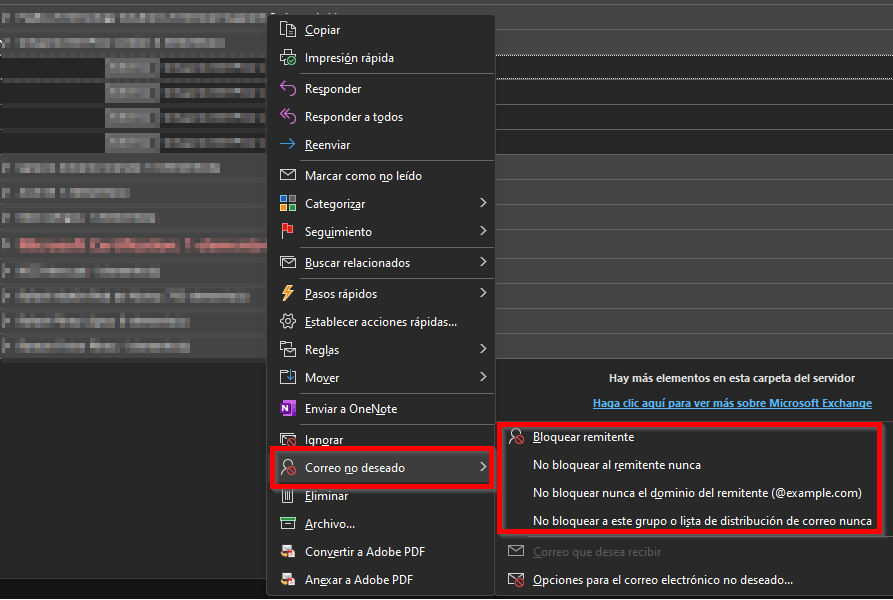
- Block sender: adds the address to your blocked senders list.
- Never block sender: ensures a legitimate contact doesn’t end up in “Junk Email.”
- Never block the sender’s domain: allows you to receive messages from an entire specific domain.
- Never block distribution lists: useful when working with corporate mailing groups.
Configure junk email options in Outlook
For more advanced control, go to “Junk Email Options…”. From there, you can customize how Outlook handles incoming messages.
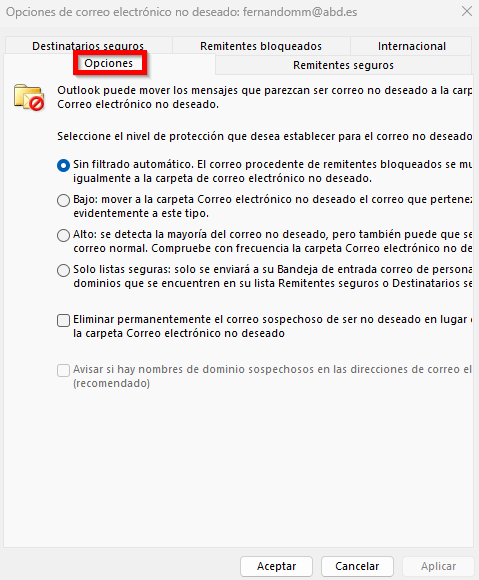
Key tabs and settings
- Safe senders: addresses or domains that will never be classified as spam.
- Safe recipients: ensures your outgoing emails aren’t blocked by mistake.
- Blocked senders: here you can view and manage all email addresses and domains Outlook considers fraudulent
- International: blocks emails by country or language, useful for reducing large‑scale spam campaigns.
Additional Microsoft 365 security tips
Beyond blocking spam in Outlook, we recommend:
- Enabling multifactor authentication (MFA).
- Training employees on how to detect phishing in Outlook.
- Reviewing security policies with your IT team.
Recommended: Read our blog on Microsoft 365 security.
Official source: Microsoft Outlook Security Center.
Conclusion
Blocking fraudulent emails in Outlook is a simple yet essential step to strengthening security in Microsoft 365. With just a few clicks, you can prevent phishing, spam, and malicious messages.
Want to implement an advanced security strategy in your company?
At ABD Consulting, we help you configure and optimize Outlook and Microsoft 365 to protect your business against cyberthreats.