


The feeling of missing a Teams call
Missing a Microsoft Teams call is a frustrating experience that often happens when we least expect it.
Even with headphones, microphone, and speakers in place, it's common not to notice incoming calls.
In this article, we'll show you how to set up a second ringtone in Teams that plays through external speakers. This solution is especially useful when you're busy with other tasks or in a noisy environment.
- Scenario 1 - Background Music or Previous Calls: Imagine you're enjoying background music on your PC, in the middle of a call with a client or supplier, or attending an engaging online seminar. You're using your headphones to stay focused, and at that moment, a Teams call comes in.
The problem is that background sound can drown out the call notification, resulting in a missed opportunity.
- Scenario 2 - Away from Your Desk: In other cases, you might not always be sitting at your desk. Maybe you need to move around your workspace or simply aren't in a place where you can clearly hear the call.
The solution to these problems lies in configuring Teams so that call sounds play through your external speakers.
This will ensure you don't miss any crucial calls, regardless of your daily activities.
How to Configure the Secondary Ringtone in Teams
To implement this solution, you need to have external speakers connected and working. Once they're ready, follow these steps:
Step 1: Open Microsoft Teams
Go to the top of the tool, where you'll see three dots. Click on these dots and select "Settings".

Step 2: Configure Your Devices
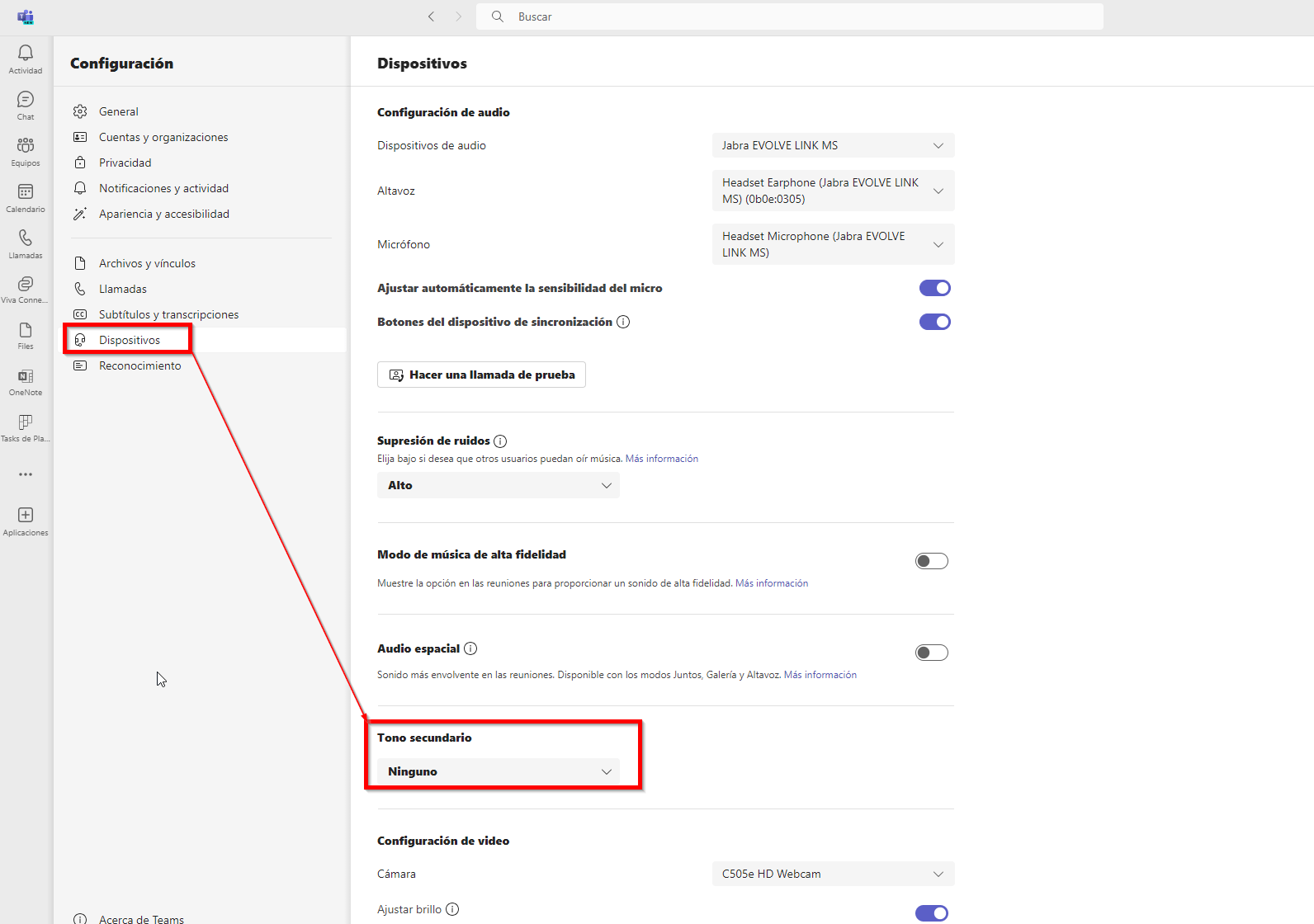
Within Settings, look for the "Devices" section. Here you can manage Teams' sound, audio, and video settings.
Step 3: Select Your External Speakers
Within Devices, look for "Secondary Ringer" and select it from the dropdown, then choose your external speakers.
With this setup, Teams calls will be heard through both your headphones and external speakers.
This solution is effective and simple, allowing you to avoid missing important calls due to sound issues.
Now, you won't have to worry about not hearing Teams notifications while working or engaged in other activities.
Remember that to get the most out of Microsoft Teams and Microsoft 365, it's important to configure your tools according to your needs and preferences.
Key Benefits of Microsoft Teams
In addition to solving the problem of missing important calls, Microsoft Teams offers a series of key benefits that can transform the way you work and collaborate:
- Borderless Collaboration: Microsoft Teams brings together geographically dispersed teams, enabling real-time collaboration no matter where team members are located.
- Integration with Other Microsoft 365 Tools: The platform seamlessly integrates with apps like Word, Excel, and SharePoint, making document creation and collaboration easier.
- Security and Compliance: Security is a priority in Microsoft Teams, with end-to-end encryption, two-factor authentication, and compliance with security regulations.
- Workspace Customization: Teams allows the creation of customized workspaces to keep information organized and accessible.
- Education and Training: In the education sector, Microsoft Teams is invaluable for creating virtual classrooms and interacting with students in a distance learning environment.
- Constant Growth: Microsoft continues to improve Teams, meaning new features and constant enhancements.
- A Future of Collaboration: Microsoft Teams is much more than a communication tool; it's a platform that drives collaboration, productivity, and efficiency in various environments.
With the growing need to adapt to a constantly changing world, Teams presents itself as a reliable and versatile solution.
If you want more information about Microsoft Teams or our Virtual PBX solutions with Teams, don’t hesitate to contact us.
We're here to help you optimize your applications and ensure your work experience is as efficient as possible.
¡Contact us through our usual channels and we'll assist you with everything you need!