

Have you experienced problems with Microsoft Teams in your daily work? You’re not alone. This tool is essential for digital collaboration, but sometimes small issues or lesser‑known settings can impact your productivity in Teams.
Today we bring you three practical Teams solutions that you can apply in just minutes: from customizing your video calls to organizing chats and configuring audio so you never miss a call.
Solution 1: Custom background in Teams video calls
A custom background in Teams can make a real difference: it gives a professional look, protects your privacy, and improves the visual experience.

How to change the background in Teams step by step
- Open Microsoft Teams on your device.
- Go to Calendar and schedule or join a meeting.
- Before joining, click on Video settings.
- Select Background effects > Add new.
- Upload your image (recommended: high‑quality JPG or PNG).
- Click on Apply and you're done.
Quick tips
- Use neutral or corporate backgrounds for work meetings.
- Change the background at any time during the call.
- If the background doesn’t load, restart Teams or reduce the image size.
Solution 2: Separate chats and teams in Teams
Is it hard for you to keep your conversations organized? With this feature, you can separate chats and teams in Teams and improve your workflow.
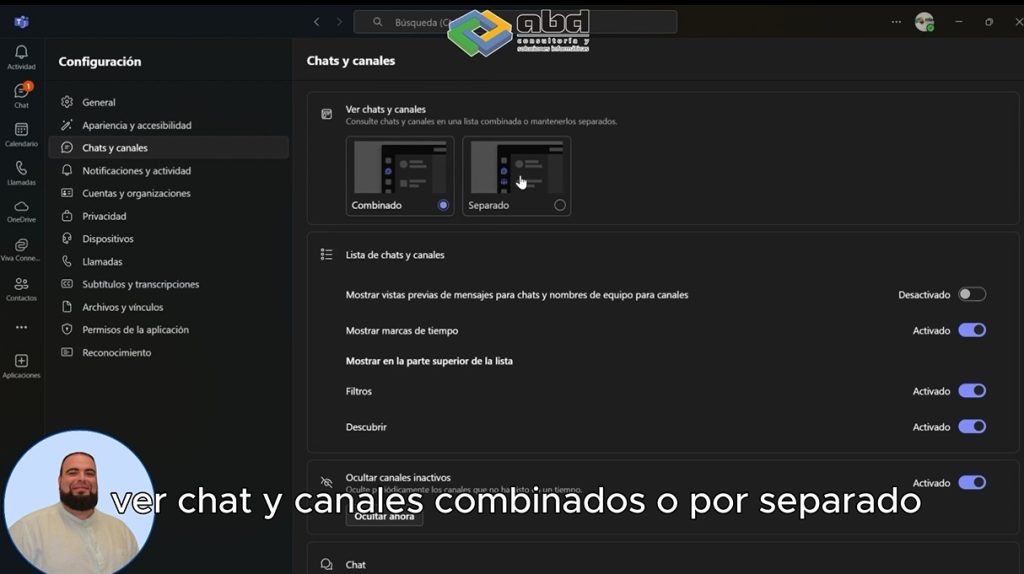
Teams view settings
- Go to your profile > Settings.
- Open General > View.
- Enable the option Show chats and teams separately.
Advantages
- Faster access to conversations and files.
- Fewer distractions.
- Greater clarity in your workspace.
Note: this setting is personal and does not affect your colleagues.
Solution 3: Make calls ring through the speaker
Do you miss calls in Teams because you don’t hear the ringtone? With the secondary ringer option in Teams, you can route the sound to your device’s speaker.

Set up the speaker for Teams calls
- Go to Settings > Devices.
- Scroll down to Secondary ringer.
- Select the computer speakers as the ringer device.
This way you make sure you don’t miss any important calls, even if you’re not using headphones.
Frequently asked questions about issues and solutions in Microsoft Teams
Can I customize calls in Teams beyond the background?
Yes, you can change video effects, enable captions, and share your screen to enhance the experience.
How can I improve productivity in Teams?
Organize chats and teams, use smart notifications, and set up meetings with reminders.
What should I do if Teams is slow or crashes?
Check your connection, clear the Teams cache, and make sure you’re using the latest version.
Conclusion of the solutions for Teams

Microsoft Teams is a powerful tool, but knowing these tips and tricks will help you work more smoothly:
- Customize your Teams video calls.
- Keep your chats and teams organized.
- Set up your devices and speakers properly.
With these Teams solutions, you’ll improve your experience and be more productive in your day‑to‑day work.
At ABD, we help you get the most out of Microsoft Teams
At ABD Consulting, we specialize in the implementation and optimization of Microsoft 365. We help you configure Teams, improve collaboration, and train your teams so they can work more productively and with fewer interruptions.
Do you want personalized guidance on Microsoft Teams? Contact us and take the next step toward more efficient collaboration.