


In the competitive world of enterprise software development, efficiency and productivity are critical factors for success.
Microsoft Business Central, as a leading ERP platform, is no exception. Developers are constantly looking for ways to optimize their workflow and deliver high‑quality solutions in less time. Artificial intelligence—particularly tools like Copilot—is radically transforming how technical professionals approach these challenges.
This article explores how AI tools can enhance development in Business Central, increasing productivity without sacrificing quality or developer creativity.
The Developer and AI: A Strategic Collaboration
Before diving into technical aspects, it is essential to understand that tools like Copilot are not intended to replace expert knowledge.
While Copilot or other AI tools can help you achieve results, they are not the final solution, as expert knowledge is required to bring everything together and understand how to use these tools effectively.
AI is designed to amplify the developer’s capabilities, not replace them. Effective development with AI requires a deep understanding of Business Central and a strategic approach to leveraging these tools.
Practical Use Cases: AI in Action
Efficient Creation of Database Objects
One of the most common scenarios in BC development is the creation of tables, pages, and other objects. Let’s take a look at how AI can optimize this process:
Example: Creating a table
Traditionally, a developer might use VS Code to manually create a table or rely on a wizard. With Copilot, this process can be significantly streamlined:
1. The developer specifies the required fields (names, types, and lengths)

2. They ask Copilot: “Create a table with these fields for customer information”
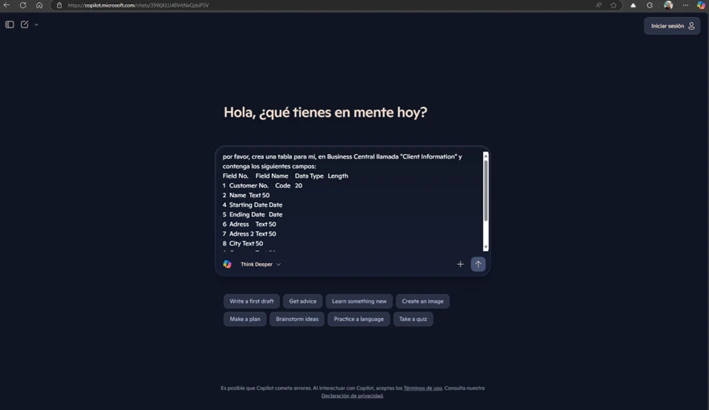
3. Copilot generates the complete AL code, even correctly identifying the primary key
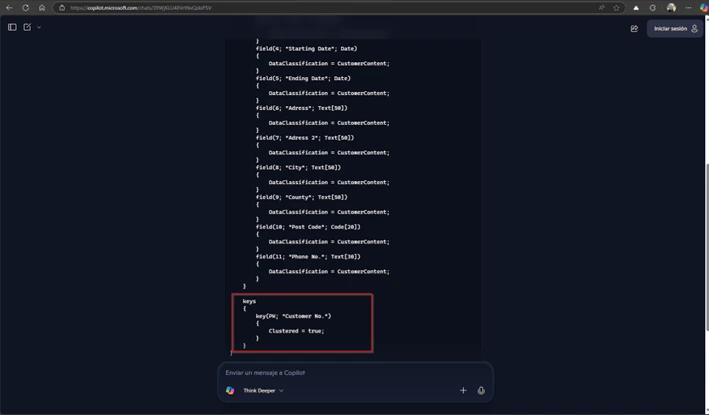
What’s most impressive is that Copilot was able to identify the primary key (in this case, the customer number) without explicit instructions, demonstrating its ability to apply business logic based on common patterns.
User Interface Development
User interfaces in Business Central require attention to detail and an understanding of the user experience. Copilot can assist with:
Creation of List-Type Pages
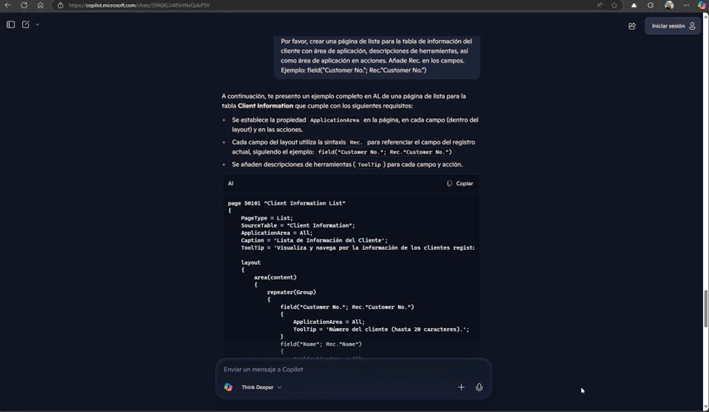
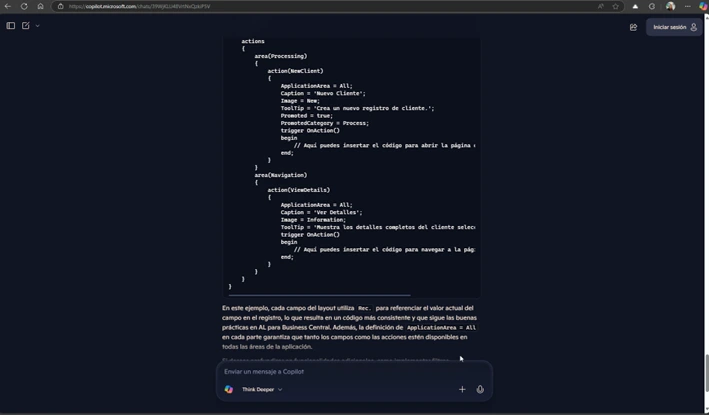
When specifically requesting: “Create a list page for the customer information table with application area, tooltips, as well as application area in actions. Add Rec. to the fields. Example: field(‘Customer No.’; Rec.’Customer No.’)”
Copilot can generate a complete page with:
- Proper structure
- Assigned application area
- Informative tooltips to enhance the user experience
- Rec. syntax to reference the field of the current record
Card-Type Pages
“Create the Card-type page”
Copilot can create well‑organized card pages with:
- Logical groups (FastTabs)
- Smart placement of fields in the appropriate groups
- A structure similar to standard BC components
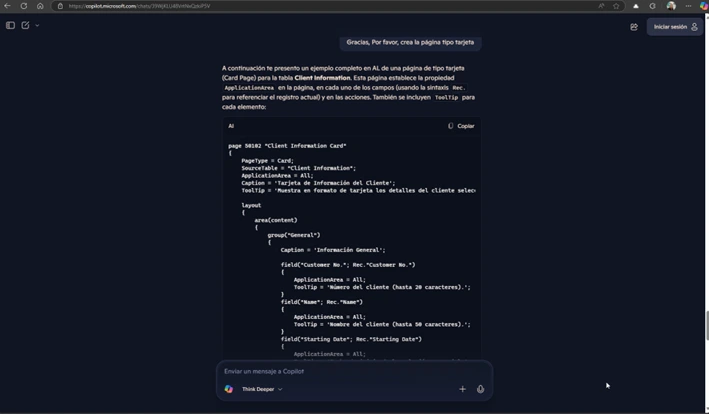
A notable aspect is that Copilot can maintain the context of the conversation, remembering the fields previously defined without needing to specify them again.
As we have seen, to link the page with the list, we would still need the CardPageId property in the list page. Since this is a simple action, it takes less time to do it manually than to ask Copilot.
Code Migration and Upgrade
One of the most valuable use cases is migrating code from earlier versions such as NAV to Business Central. This process traditionally requires:
- Accessing BC14 via RDP
- Running the executable text to convert objects
- Transferring them to the BC project
- Manually adjusting the code to make it compilable
With Copilot, this process is significantly simplified:
1. Export the object text from NAV
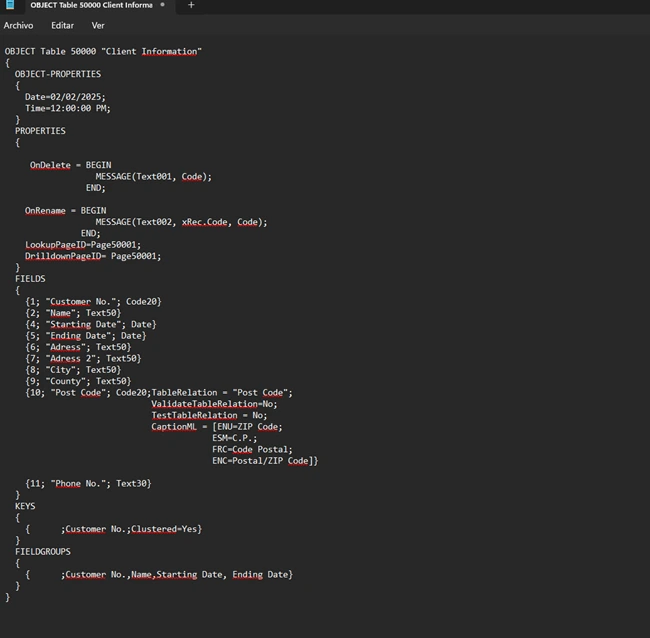
2. Ask Copilot: “Convert this NAV text into compilable AL code for Business Central”
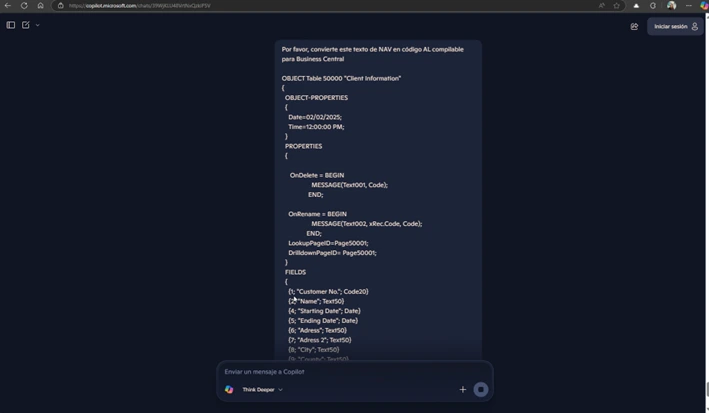
The result is functional AL code with minimal adjustments required. In the demonstrated example, Copilot was able to:
- Correctly recreate the table structure
- Maintain table relationships (such as the postal code relationship)
- Preserve trigger logic (onDelete, onRename)
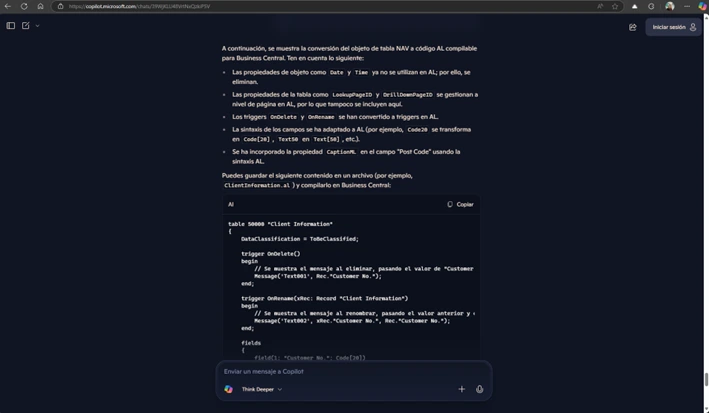
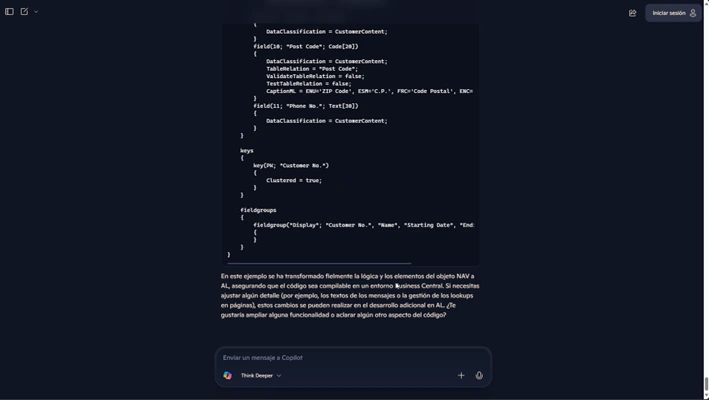
Although some specific properties may be lost, the productivity gain is substantial, especially when you don’t have local access to BC14 or when the traditional process would be too labor‑intensive.
The Business Value: Beyond Convenience
The adoption of AI tools like Copilot in Business Central development offers tangible business benefits:
Reduction in Development Time
Automating repetitive tasks such as creating standard objects can significantly reduce development time. A recent GitHub study suggests that developers using Copilot complete tasks up to 55% faster than those who do not.
Improved Code Quality
AI can suggest proven design patterns and prevent common mistakes, resulting in cleaner and more reliable code. This translates into less time spent on debugging and maintenance.
Optimization of Resources in Migration Projects
In upgrade projects from NAV to Business Central, where the client may be unsure about which customizations to keep, the ability to quickly convert code allows you to:
- Evaluate multiple customizations in less time
- Present functional prototypes to the client for validation
- Iterate more quickly based on feedback
Case Study: Agile Re‑implementation
A manufacturing company needed to migrate from NAV 2009 to Business Central with more than 200 customizations. The development team used Copilot to:
- Convert the base code of the customizations in 2 days, a task that would normally take 2 weeks
- Present a functional environment during the first week of the project
- Allow the client to identify early which customizations they truly needed, optimizing the project scope
The result: a 40% reduction in total project time and higher customer satisfaction by being able to interact with a functional system from the early stages.
Best Practices: Maximizing the Potential of AI
To make the most of tools like Copilot in Business Central development, consider the following recommendations:
Be Specific in Your Instructions
The quality of the output directly depends on the quality of the instruction. “Being specific will give you the best results,” as the developer in the presentation notes. Clearly stating what you need saves time on later adjustments.
Example:
- Vague instruction: “Create a page”
- Specific instruction: “Create a list page for the customer information table with the Customer application area and descriptive tooltips”
Verify and Refine
AI will generate functional code, but expert review remains essential. Key aspects to verify include:
- Specific properties that may have been omitted
- Relationships between objects (such as page IDs for lookups)
- Performance optimizations
Cultivate Curiosity
“Being curious” about the capabilities of AI opens new possibilities. Experiment with different types of requests to discover where the tool is most effective in your specific workflow.
ABD, shaping the future of Business Central development

The integration of AI into Business Central development represents a natural evolution in how we build business solutions. Far from threatening the creativity or value of the developer, these tools free up time and mental resources that can be dedicated to solving more complex problems and creating differentiated value.
The developer of the future will not be replaced by AI, but empowered by it. Those professionals who master the art of collaborating with these tools — knowing when and how to use them — will have a significant competitive advantage in the market.
AI has a bad reputation for taking away our creativity, but that is not the case. If you are curious about the ways you can use it, I believe it can open up another area of creativity where you can implement it while still staying true to your creative sense as a person or as a developer.
At ABD, as a strategic Microsoft partner, we are committed to the continuous exploration of how these technologies can enhance the value we deliver to our customers, while always keeping expert knowledge and human creativity at the core of our solutions.