

Since version 26 of Microsoft Dynamics Business Central, Copilot includes a preliminary autocomplete feature that helps you automatically fill in empty editable fields on your Business Central pages. This functionality, powered by artificial intelligence, integrates naturally into the daily workflow, making data entry easier and reducing human errors.
Whether you are creating or modifying a record, Copilot can suggest values based on:
- Data you use frequently or recently.
- Options available in dropdown lists or searches.
- The context of the page.
- Artificial intelligence (AI).
This capability not only saves time but also allows you to work with greater confidence in the accuracy of the suggested data.
You decide whether to accept or dismiss each suggestion. Copilot never saves anything automatically. In addition, it only accesses the data for which you already have permission, ensuring the security and privacy of the information.
Note: As with any AI, the suggestions may not be 100% accurate. Review them before confirming.
Languages and compatibility

Currently, this feature is validated only for the English language. Although it may work in other languages, it might not function correctly
This means that although you can experiment with autocomplete in other environments, the best results are obtained in environments configured in English. Microsoft continues working to expand language compatibility in future versions.
Where can you use autocomplete?
Available in:
- Card-type pages and documents (such as customer cards or sales orders).
- Editable fields within fast tabs.
Not available in:
- List-type pages (Customers, Sales Orders).
- Worksheets (such as the warehouse worksheet).
- Setup pages (such as Company Information).
- Task dialogs.
- Non-editable, multiline, masked fields (such as passwords), date/time fields, or unique identifiers.
Additionally, some suggestions may depend on your country or region. For example, address fields require Bing web search to be available locally. This means that, in certain locations, the feature may behave differently.
How to use it?
- Open the page and select an editable field.
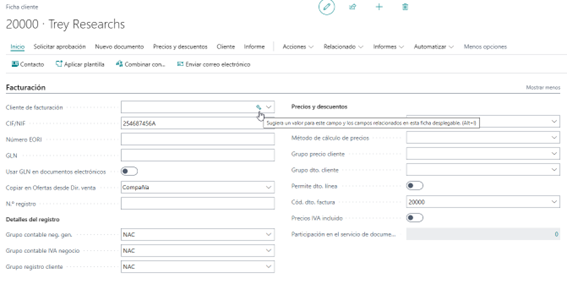 Click the icon “Suggest a value for this field and related fields” or press Alt + I.
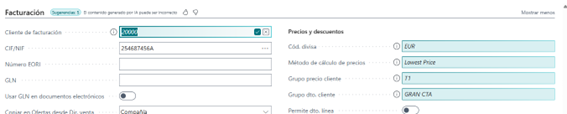
- If there are suggestions, they will appear in italics along with the “Show details” icon.
- You can easily accept or dismiss each suggestion.

This process allows you to take advantage of AI in an intuitive way, without interrupting your usual workflow.
Final tip
This feature is designed to help you work faster and with greater accuracy. Try it in your daily processes and discover how it can improve your experience with Business Central. The more you interact with Copilot, the more refined the suggestions will become based on your usage context.
At ABD, we help you get the most out of Business Central and Copilot.

At ABD Consulting and IT Solutions, we have been helping companies digitize their business processes for more than 30 years with solutions such as Microsoft Dynamics 365 Business Central. As official Microsoft partners, we support our clients in adopting advanced functionalities such as Copilot, so they can take advantage of artificial intelligence in a practical and
From implementation to technical support, including training and customization, our team ensures that each functionality —such as intelligent autocomplete— has a real impact on day‑to‑day productivity and efficiency.
Do you want to know how to apply these improvements in your environment? Contact us to stay up to date with everything new that Microsoft is bringing in AI and business management.
Thank you for reading. See you in the next post.