

In Microsoft Dynamics 365 Business Central, customer payments can be entered through the Cash Receipt Journal. At the time of entry, customer payments can be applied to one or more open entries or, if you're not ready to apply the payments, you can apply them from posted entries later.
To enter a customer payment through the Cash Receipt Journal:
1. First, search for the cash receipt journal using the "Tell Me" search function in Microsoft Dynamics 365 Business Central

2. Next, select the desired cash receipt journal section to enter the payment.

3. Next, select the desired cash receipt journal section to enter the payment.
3.1. "Posting Date" is the date you will post the Payment
3.2. Since we are entering the Customer payment, the "Document Type" would be Payment.
3.3. Next, enter the "Document No." for the Payment if the "No. Series" is not defined for the cash receipt journal section. The number can represent the Customer's "Check Number" or other reference.
3.4. The "Account Type" must be Customer and the "Account No." is the Customer number defined in Business Central.
3.5. After that, enter the credit amount to pay
3.6. Then, specify the "Bal. Account Type" and "Bal. Account No." as the general ledger number or bank account number in which the accounting entry is posted, such as a cash account. (This may be predefined in the cash receipt journal batch).
4. Apply the Payment to open Customer Entries
4.1. If the payment application is for one entry, you can select the "Applies-to Doc. Type" option and the "Applies-to Doc. No." of the posted document to which this document or journal line will be applied when posting.
4.2. When applying a payment to one or more entries, select the "Apply Entries" action item to open the "Apply Customer Entries" page.
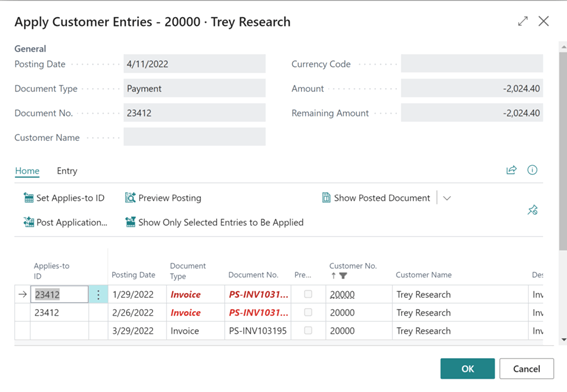
4.2.1. Next, select the entries to which you would like to apply the payment and select the "Set Application ID" action item for each. The "Document No." value from the journal line will populate the "Applies-to ID" field in the applied entry.

4.2.2. If the applied payment is not for the full remaining amount, you can enter the applied amount in the "Amount to Apply" field in the open entry.
4.2.3. Next, select OK to close the "Apply Customer Entries" page.

5. Finally, complete the customer payment by selecting the Post action item on the "Cash Receipt Journal" page
Note: The code and information discussed in this article are only for informational and demonstration purposes. This content was created by referencing Microsoft Dynamics 365 Business Central