

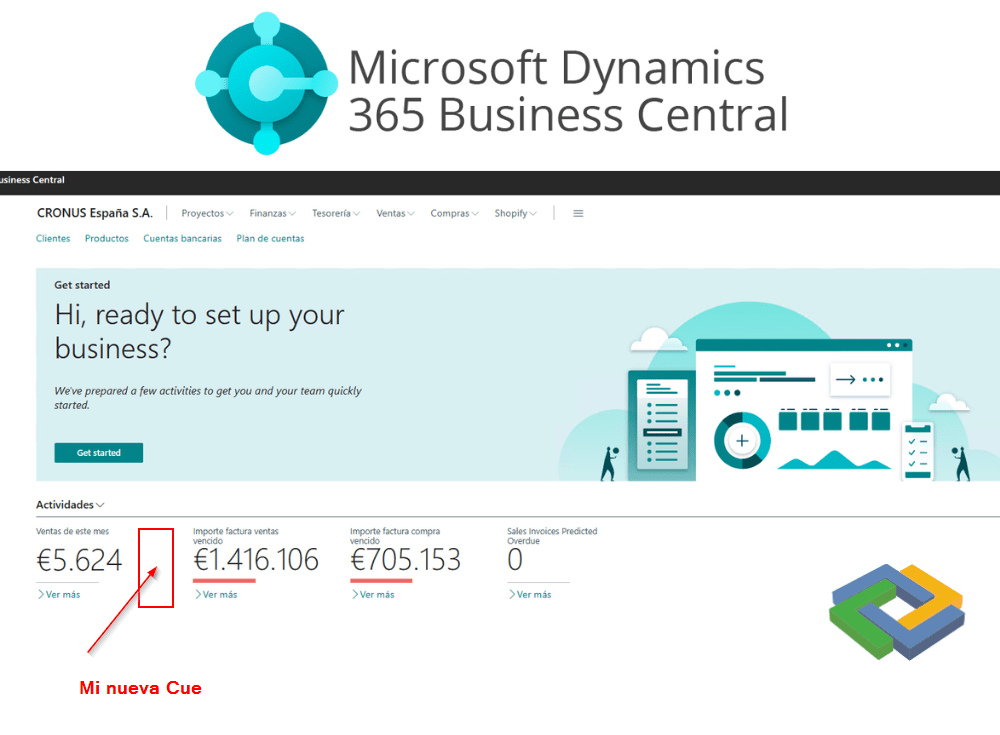
The Role Center of Business Central is each user’s entry point and their daily control hub. Customizing it allows you to display relevant information according to the role, making navigation easier and providing quick access to the most important tasks.
In this guide, you’ll learn how to create a Cue in the Business Central Role Center, a visual element that will allow you to monitor key data such as yearly sales, improving efficiency and decision-making.
What is a Cue in Business Central?
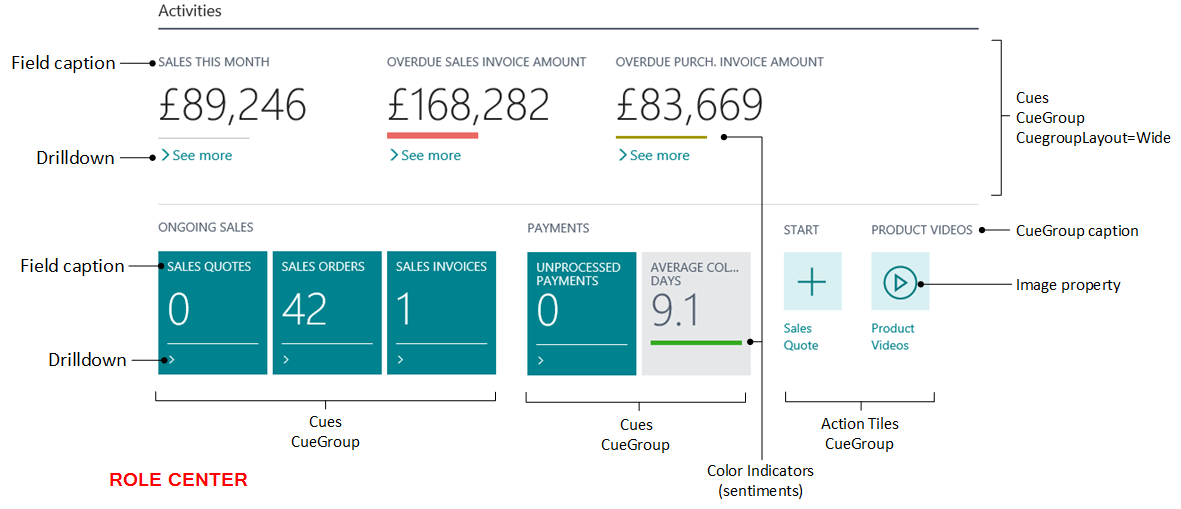
A Cue (or Stack) is a visual and interactive representation of business data. It is used to display aggregated values —for example, the number of pending orders or total sales— and allows the user to click on it to drill down or open related pages.
Cues can only display integer or decimalvalues, and their information is updated at runtime from the system tables.
In this example, we’ll create a Cue that shows “Sales of the year” and opens a page filtered by date when clicked.
Step-by-step implementation
1. Create the table and page extension
First, create a table extension for the Activities Cue (1313) and a page extension 0365 Activities (1310).
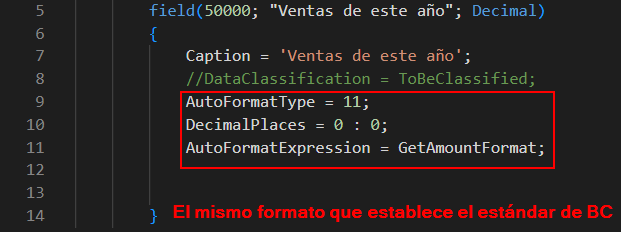

This will allow you to add your custom Cue within the user's main work area.
2. Develop the Codeunit
Next, develop a Codeunit with a subscription event.
OnRefreshActivitiesCueDataOnBeforeModify to the standard Business Central.
This procedure will allow integrating your custom Cue with the existing ones.
Use a Record type variable CustLedgerEntry, perform a Reset and filter by document type Invoice and Credit Memo.
To define the date range:
CalcDate(‘<-CY>’, WORKDATE);
This selects transactions from the beginning of the year to the current date.
With CalcSum, you can calculate the total of sales invoices and credit memos (Sales (LCY)) and display it in the Cue.

3. Create the DrillDown procedure
The DrillDownSalesYear procedure will open a filtered page with the sales invoices and credit memos of the current year.
Make sure to use the SecurityFiltering property to respect the record's security filters and Page.Run to execute the page.

4. Call the Codeunit from extensions
Don't forget to declare a Codeunit type variable in both extensions (table and page) to invoke the defined procedures.

5. Configure colors and updates
In the Cue Setup, you can assign colors based on the numeric range of values.
Furthermore, the “Update Data” option allows you to refresh the Cues in real time, ensuring that it always displays the most recent information.

Result: final view of the Cues
Once created, your Cue “Sales of the year” will appear alongside the rest of the Cues in the Role Center. When you click on it, the filtered page with the details of invoices and credit memos will open automatically.


Conclusion
Adding a Cue to the Business Central Role Center is an excellent way to customize the work environment, provide immediate information, and improve team efficiency.
Well-designed Cues help users focus on the most relevant metrics and make faster decisions based on up-to-date data.
If you want to keep learning about customization and development in Business Central, contact our team.