

Microsoft Teams is increasingly used as the company's hub for conducting meetings.
Whether with clients, suppliers, or colleagues, meetings through Microsoft Teams are more popular.
Their ease of creation and execution, as well as their immediacy and management, make it one of the most common means of interaction between professionals.
Therefore, the IT department must be attentive to how those meetings are and we need to be alert to configure and adapt them to what our company needs.
Accessing the Teams Admin Center
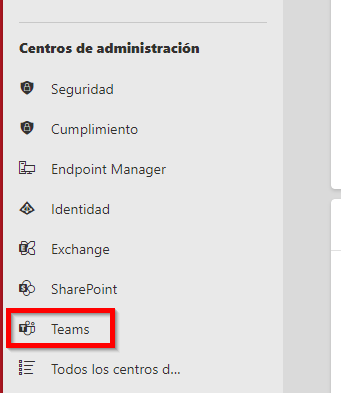
To manage meetings, first, access the Teams Admin Center from the Microsoft 365 Admin portal.
Exploring Teams Meeting Policies
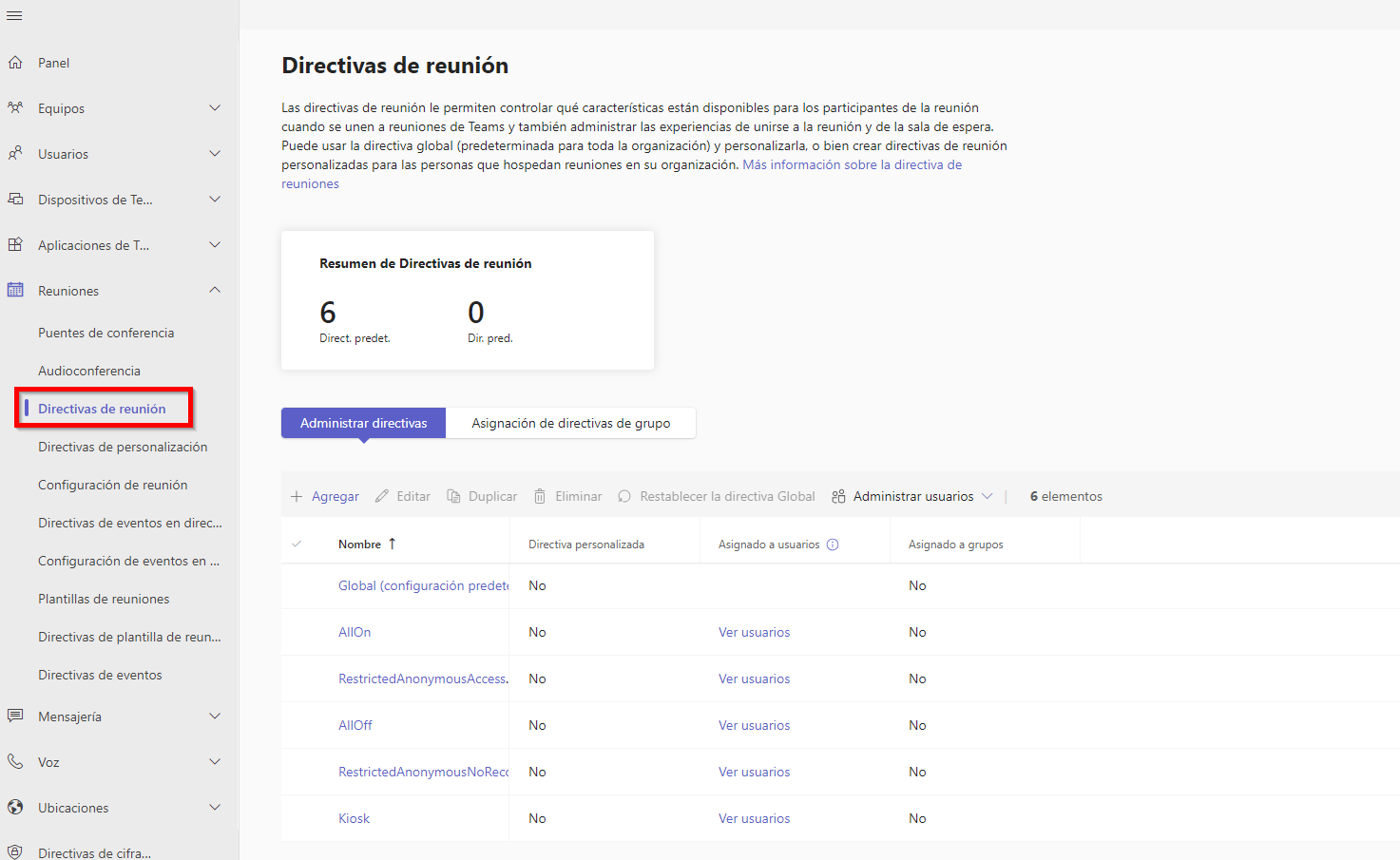
Within the Admin Center, navigate to meeting management and explore the Meeting Policies. Here, configure what attendees will find when joining a meeting.
Global Policy and Meeting Configuration
This is where we will define what meeting attendees will encounter once they access.
If we access the Global policy, we can see what the user accessing the meeting will find.

Of course, we can make the necessary modifications to adapt everything to our interests.
Another interesting element to control is inviting users we want to attend the meeting.
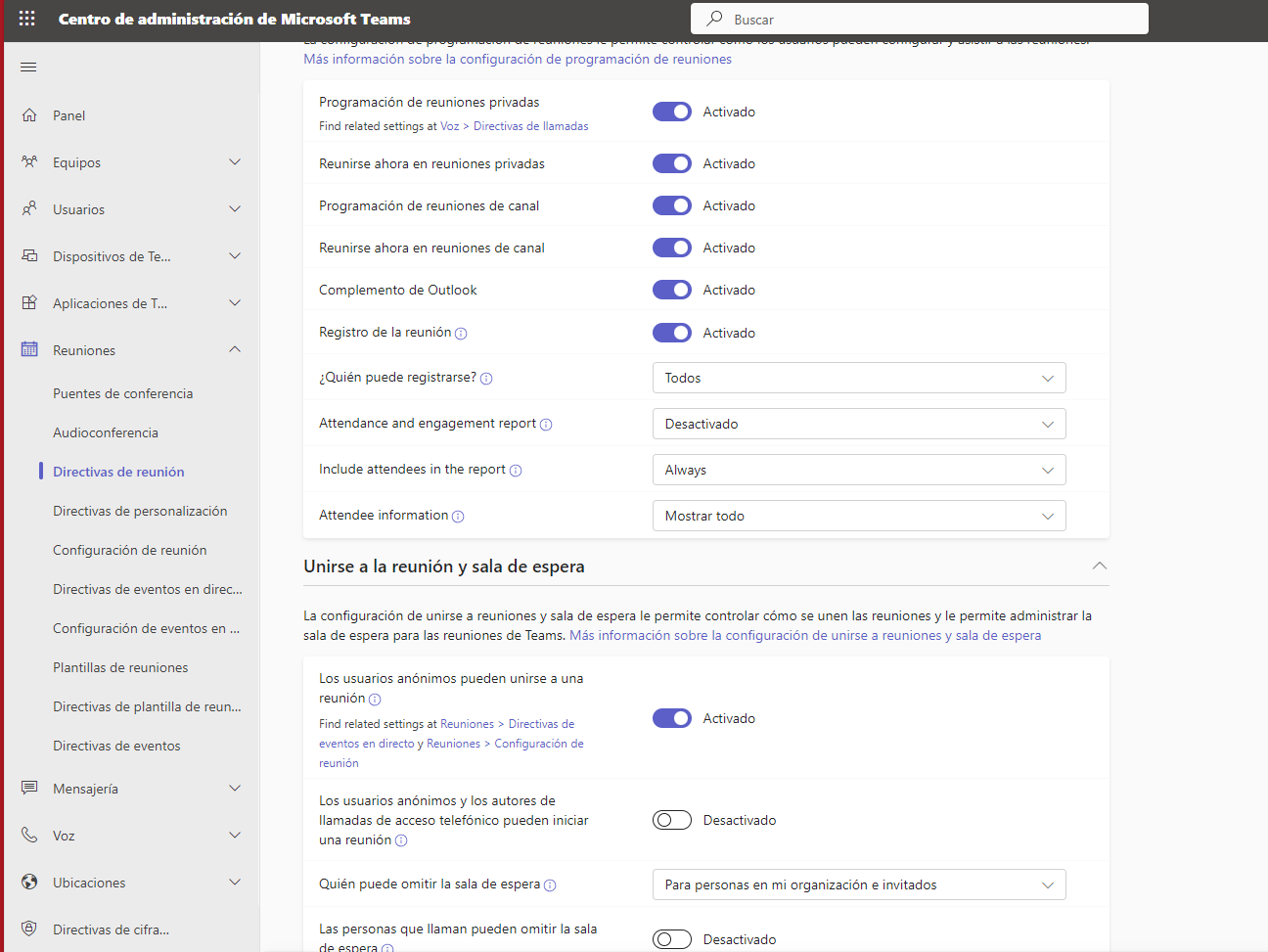
For this, we will go to control the Meeting Configuration policies.
Meeting Creation and Configuration
As we can see, there are many aspects we can modify when creating and configuring a meeting.
These elements are worth reviewing and controlling meeting creation to adjust these different options to what our organization requires.
A recommended previous step is to conduct tests with meeting invitations and observe the system's behavior when accessing and scheduling a meeting.
What is the Global Meeting Policy in Teams?

The Global Meeting Policy in Microsoft Teams controls the features available to participants in meetings scheduled by users.
From audio and video to guest participation, these policies impact the meeting join experience.
Manage these settings from the Admin Center, customizing the experience according to your requirements.
Also read: Microsoft 365 User Tip: How to use secondary dial tone in Teams calls
What Can You Control with Meeting Policies in Teams?
The Microsoft Teams meeting policies offer complete control over various features for organizers and participants in meetings, webinars, and assemblies in your organization.
Some of the features you can manage with these policies include:
- Audio and Video: Adjust audio and video preferences during meetings.
- Screen and Content Sharing: Control who can share screens and what content can be displayed.
- Participants and Participation Level Settings: Manage who can present, bypass the waiting room, enable live captions, chat in meetings, and more.
Find these settings in the Teams Admin Center, specifically in the Meeting Policies section.
You can customize policies at the global level or create and assign custom policies to meet your organization's unique needs.
If you want more information about Microsoft Teams or Microsoft 365, feel free to contact us through our usual channels and we'll help you.