


How to obtain a database schema for Dynamics 365 Business Central
1. Introduction
On this occasion, in this blog article I present a very common scenario that I encounter in my day‑to‑day work. Both with clients who ask me, for example, “can this field from this place be added to that view…?”, and with the consulting and development team when carrying out a custom development.
Where can we obtain an up‑to‑date and visually appealing data dictionary or database schema for a Dynamics 365 Business Central customer?
Without needing to analyze the customer's extensions or review the standard code from the Object Designer in Visual Studio Code. In this post, we will briefly address this topic.
While browsing the internet, I found a solution: Jet Reports. You can visit their website: https://insightsoftware.com/sample-reports/data-dictionary/. It looks quite similar to this:
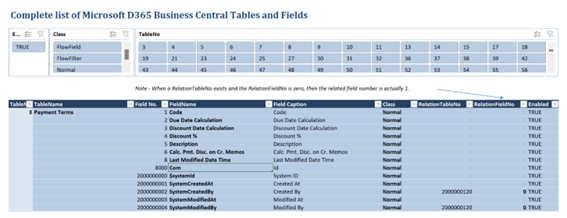
The problem with this solution is that it cannot be updated unless you have Jet Reports. What happens if you have custom tables or third‑party tables?
There is a free method, which consists of creating a Power BI report. This allows a wide range of visualization possibilities for this data schema and is user‑friendly for the customer.
2. Solution
To do this, there are several methods, but in my case, I prefer the simplest and fastest one.
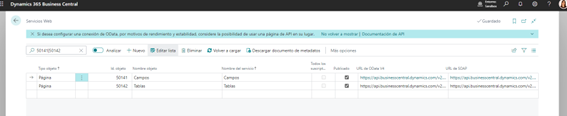
Create two Page List–type objects and publish them as web services to use them as a data source for Power BI.
The new pages are generated from two system tables: “Field” and “Key”.
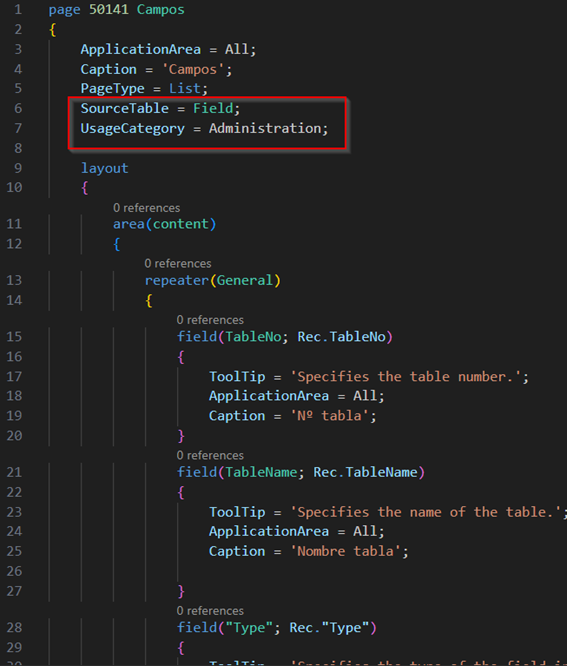
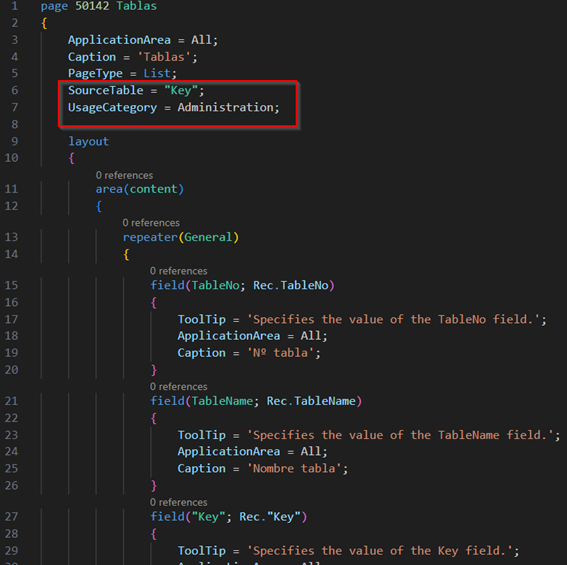
Our “Fields” and “Tables” pages retrieve the tables and fields from the new extensions.
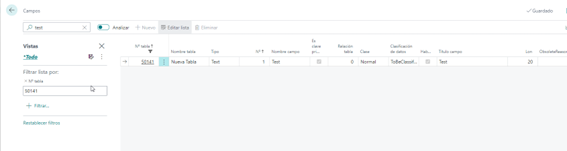
Next, we would create the web services to connect Power BI.
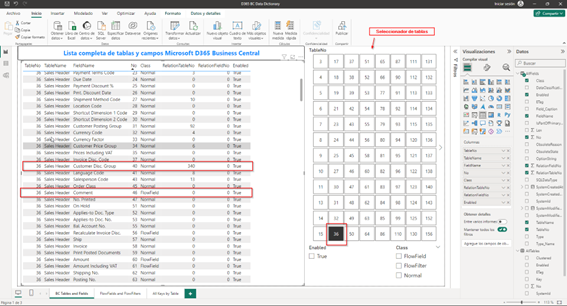
Regarding the design of the Power BI dashboard, it is inspired by the Jet Reports example.
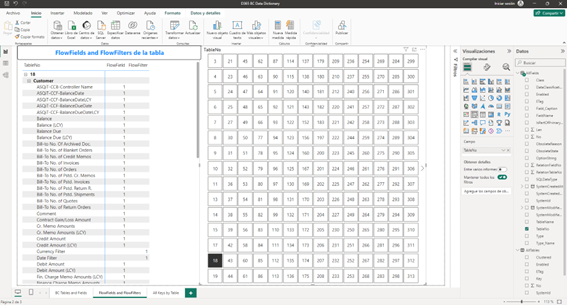
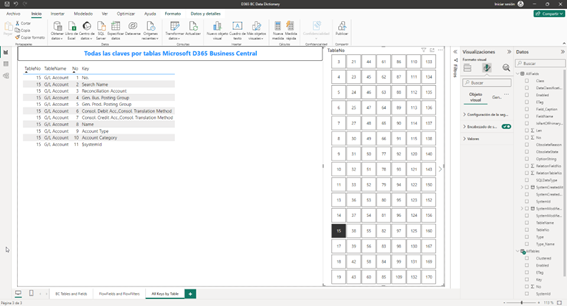
We have three visualization tabs that show an example of how to experiment with the view options that interest us the most.
Tables and Fields
FlowFields and FlowFilters by table.
Keys by table
3. Conclusion
As we have been able to observe, this solution allows us to access the data schema more quickly Business Central without having to dive into the depths of the code or extensions, and for the client it is a direct GPS to their database information in an attractive and visual way.
You can find the solution code in more detail at: https://github.com/JAng13sea/Blogs/tree/master/Data%20Dictionary
I hope this has been very helpful.Dynamics 365 Development
ABD Consulting and IT Solutions