

El análisis de datos en Business Central permite explorar, resumir y visualizar información empresarial sin modificar los datos originales.
Si trabajas habitualmente con movimientos de clientes, ventas, compras o consultas en Dynamics 365 Business Central, esta funcionalidad te ayudará a obtener información más útil sin necesidad de exportar datos a Excel ni ejecutar informes adicionales.
En esta guía descubrirás cómo utilizar el modo de análisis de datos de Business Central, qué requisitos necesitas para activarlo y cómo compartir análisis personalizados con otros usuarios de tu organización.

What is data analysis in Business Central?
La funcionalidad de análisis de datos en Business Central permite examinar información directamente desde las páginas de lista y consultas.
Gracias a esta herramienta, los usuarios pueden:
- Analizar datos sin crear informes.
- Agrupar y resumir información.
- Crear vistas personalizadas.
- Obtener conclusiones más rápidas.
- Trabajar de forma interactiva sobre los datos.
Todo ello sin alterar la información original ni modificar el diseño habitual de la aplicación.

¿Por qué es importante analizar páginas de lista y consultas?
Las empresas generan constantemente información relacionada con:
- Clientes.
- Proveedores.
- Sales.
- Shopping.
- Inventory.
- Finance.
Poder analizar estos datos directamente desde Business Central permite detectar tendencias, identificar incidencias y mejorar la toma de decisiones en tiempo real.
Características del modo de análisis de datos en Business Central
Análisis interactivo y flexible
Una de las principales ventajas del modo de análisis es que permite trabajar con los datos de forma dinámica.
Los usuarios pueden crear diferentes pestañas de análisis para representar distintas necesidades empresariales sin modificar la vista original.
Ejemplos de análisis que puedes crear
Algunas vistas habituales son:
- Mis clientes.
- Clientes con mayor volumen de ventas.
- Proveedores incorporados recientemente.
- Seguimiento de inventario.
- Estadísticas comerciales.
- Movimientos de clientes.
- Financial analysis.
Esto convierte a Business Central en una herramienta mucho más potente para la explotación de datos.

Requisitos para utilizar el análisis de datos en Business Central
Enablement in Business Central version 22
Si utilizas Dynamics 365 Business Central versión 22, la funcionalidad se encuentra en fase preliminar.
Por este motivo, un administrador deberá habilitarla previamente desde la administración de características.
Permisos necesarios en Business Central versión 23 y posteriores
En las versiones más recientes, la cuenta debe disponer del conjunto de permisos:
ANÁLISIS DE DATOS – EXEC
o incluir permisos de ejecución sobre el objeto del sistema:
9640 Permitir datos Modo de análisis
Los administradores pueden decidir qué usuarios tienen acceso a esta funcionalidad.
Cómo utilizar el modo de análisis en Business Central paso a paso
1. Abrir una página de lista o consulta

Accede a la página que deseas analizar.
For example:
- Selecciona el icono de búsqueda (Alt+Q).
- Escribe «Mov cliente».
- Accede a la página correspondiente.
2. Enter analysis mode

Desde la barra superior selecciona:
Entrar en modo de análisis
Business Central mostrará una interfaz optimizada específicamente para el análisis de datos.
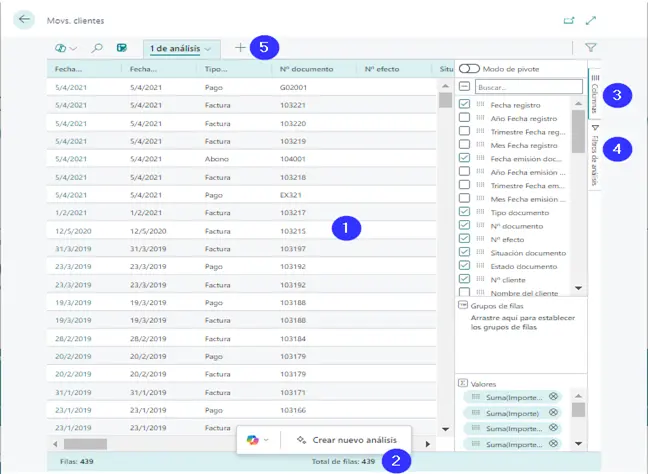
3. Utilizar Microsoft Copilot para analizar información
Las versiones más recientes incorporan la funcionalidad de asistencia de análisis con Microsoft Copilot.
Copilot can help you with:
- Identificar tendencias.
- Crear vistas personalizadas.
- Interpretar datos complejos.
- Get conclusions faster.
Esto facilita enormemente el análisis incluso para usuarios sin conocimientos avanzados de BI o reporting.
4. Manipular y resumir datos
Una vez dentro del modo de análisis podrás:
- Agrupar registros.
- Filtrar información.
- Crear resúmenes.
- Organizar columnas.
- Generar distintas perspectivas de análisis.
Todo ello manteniendo intactos los datos originales.
5. Salir del modo de análisis
Cuando hayas terminado, selecciona:
Salir del modo de análisis
Las pestañas de análisis creadas permanecerán guardadas para utilizarlas nuevamente cuando lo necesites.
Cómo compartir análisis de datos en Business Central
Una de las funcionalidades más útiles es la posibilidad de compartir análisis con otros usuarios.
Copiar el vínculo del análisis
- Selecciona la pestaña de análisis.
- Haz clic en la flecha desplegable.
- Select Copiar vínculo.


Configurar el enlace correctamente
Por defecto, el análisis estará vinculado a la empresa actual.
Si deseas compartirlo independientemente de una empresa concreta, selecciona:
No vincular a una empresa específica
Compartir el análisis
El enlace puede enviarse mediante:
- Microsoft Teams.
- Outlook.
- Word.
- OneNote.
- SharePoint
Los usuarios podrán abrir directamente la misma vista de análisis dentro de Business Central.
Beneficios del análisis de datos en Business Central
No modifica los datos originales
Toda la información permanece intacta.
Los análisis se realizan sobre una capa visual independiente.
Mantiene el diseño habitual de la aplicación
Cuando sales del modo de análisis, la página vuelve a mostrarse exactamente igual que antes.
Facilita una toma de decisiones más rápida
El acceso inmediato a la información permite:
- Detectar oportunidades.
- Identificar incidencias.
- Analizar tendencias.
- Mejorar la productividad.
Reduce la dependencia de herramientas externas
Muchos análisis que anteriormente requerían exportaciones a Excel pueden realizarse directamente desde Business Central.
Microsoft Copilot y el futuro del análisis en Business Central
La incorporación de Microsoft Copilot supone un paso más en la evolución del análisis de datos empresarial.
Gracias a la inteligencia artificial integrada, los usuarios pueden interactuar con la información mediante lenguaje natural y obtener respuestas más rápidas y precisas.
A medida que Microsoft continúe ampliando estas capacidades, Business Central se convertirá en una plataforma cada vez más potente para la gestión y el análisis empresarial.
Optimiza el análisis de datos de tu empresa con ABD

At ABD Consulting and IT Solutions ayudamos a las empresas a sacar el máximo partido a Dynamics 365 Business Central.
Nuestros especialistas pueden ayudarte a:
- Implantar Business Central.
- Optimizar procesos de negocio.
- Configurar análisis avanzados.
- Integrar Microsoft Copilot.
- Crear cuadros de mando personalizados.
- Mejorar la toma de decisiones basada en datos.
Si quieres descubrir todo el potencial del análisis de datos en Business Central, contact our team y te asesoraremos sin compromiso.