


A workspace in VS Code is a collection of one or more folders that are opened in a single VS Code window. In most cases, you will have a single folder opened as a workspace, but you can also include multiple folders using an advanced configuration called “multi-root workspaces.”
What is a VS Code workspace used for?
Workspaces are used to:
- Configure specific settings that apply only to a folder or a set of folders.
- Persist task and debugging configurations that are valid only within the context of that workspace.
- Store and restore the user interface state associated with that workspace (for example, the files that are open).
- Enable or disable extensions selectively only for that workspace.
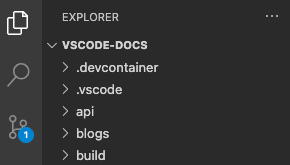
Advantages of using a VS Code workspace
- Organization: It allows you to group different projects or folders in one place, making it easier to manage and navigate between them.
- Specific configurations: You can have project‑specific settings without affecting other projects.
- Productivity: It stores the user interface state, allowing you to resume your work exactly where you left off.
- Flexibility: You can enable or disable extensions according to the needs of each project.
How do you use a VS Code workspace?
Create a workspace
- Open a folder: Go to the File menu > Open Folder… and select the folder you want to open as a workspace.
- Add more folders: If you want to add more folders, go to File > Add Folder to Workspace….
- Save the workspace: Go to File > Save Workspace As… and choose a name and location for the workspace file.
Practical example
Suppose you have two projects, “Project A” and “Project B,” and you want to work on both simultaneously.
- Create a directory for the workspace: Create a folder named MiWorkspace.
- Open the directory in VS Code: Open MiWorkspace in VS Code.
- Add project folders: Add the folders Project A and Project B to the workspace.
- Save the workspace: Save the workspace as MiWorkspace.code-workspace.
Now you can access both projects from a single VS Code window, with specific settings for each one.
Multi-root workspaces
Multi-root workspaces are an advanced VS Code feature that allows you to configure several distinct folders to be part of the same workspace. Instead of opening a folder as a workspace, you open a JSON file that lists all the workspace folders. For example: .code-workspace
{
«folders»: [
{
«path»: «my-folder-a»
},
{
«path»: «my-folder-b»
}
]
}

A multi-root workspace opened in VS Code
Note: The visual difference between having a folder open and opening a file can be subtle. To give a hint that a file has been opened, some areas of the user interface (for example, the root of the File Explorer) display an additional suffix (Workspace) next to the name…
Untitled multi-root workspaces
You can flexibly add or remove folders in your workspace. Start by opening a folder in VS Code, and then add more folders as you see fit.
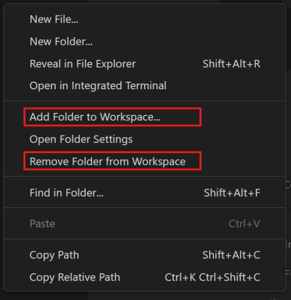
Unless you have already opened a file, the first time you add a second folder to a workspace, VS Code automatically creates an untitled workspace. In the background, VS Code automatically maintains a file that contains all the folders and workspace settings of the current session. The workspace remains untitled until you decide to save it to disk…

An untitled multi-root workspace opened in VS Code
Note: There is no difference between an untitled workspace and a saved workspace, except for the fact that an untitled workspace is created automatically for your convenience and will always be restored until you save it. VS Code automatically deletes untitled workspaces (after asking for confirmation) when closing a window in which an untitled workspace is open.
Workspace settings
Workspace settings allow you to configure options within the context of the workspace you have opened. Workspace settings always override the user’s global settings. They are physically stored in a JSON file, and their location depends on whether you opened a folder as a workspace or opened a file…
Single-folder workspace settings
Workspace settings are stored when opening a folder as a workspace… vscode/settings.json

The settings editor when a folder is opened as a workspace
Multi-root workspace configuration
When opening a workspace, all workspace settings are added to the file…
You can still configure settings per root folder, and the settings editor will display a third configuration scope called Folder Settings:

The settings editor when opening a multi-root workspace
Folder-specific settings override the settings defined in the file …
Workspace tasks and launch configurations
Similar to how workspace settings are specific to a workspace, tasks and launch configurations can also be limited to a workspace.
Depending on whether you have a folder opened as a workspace or as a file, the location of the workspace’s launch and task configurations is either inside the folder or inside the file. In addition, task and launch configurations can always be defined at the folder level, even when a file has been opened.
Conclusion
Workspaces in VS Code are a powerful tool for organizing and managing multiple projects efficiently. They allow you to have specific configurations, improve productivity, and work more flexibly. Try creating your own workspace and experience its advantages!
About ABD Consulting and IT Solutions

At ABD Consulting and IT Solutions , we stand out for providing innovative and customized technological solutions. Our team of experts is committed to helping you optimize your business processes using Microsoft Business Central and other advanced tools.
Why choose us?
- Experience: We have extensive experience in the industry.
- Customization: We offer tailor‑made solutions for the specific needs of your business.
- Support: We provide ongoing assistance to ensure the success of your projects.
Would you like to know more about how we can help you? Feel free to get in contact with us.
We are here to answer all your questions and provide you with the best solution for your business.