

Managing invoices in Dynamics 365 Business Central can be challenging if you’re not familiar with the available tools. Errors often occur in posted sales or purchase invoices, and you may need to cancel or modify them correctly.
In this article, we explain how to correct, cancel, and create corrective credit memos in Business Central, with practical examples to help you apply the most appropriate procedure in each situation.
Available options for managing posted invoices
Within the Posted Sales Invoices menu in Business Central, you will find three main actions:
- Correct
- Cancel
- Create corrective credit memo
Each of these options has a specific purpose. Let’s take a closer look at how they work and in which situations it is best to use them.
Correcting an invoice in Business Central
The Correct option cancels a posted invoice and automatically creates a credit memo that offsets the original, while also generating a new editable invoice.
When should you use it?
- When the invoice contains errors that need to be corrected.
- If you need the new invoice to go through a prior approval process.
- When you want to maintain a clear history of the original invoice and its correction.
Practical example: An invoice is issued with an incorrect price. When using the Correct option, the system cancels the original invoice and generates a new one ready to be modified and posted.
Canceling an invoice in Business Central
The Cancel option is used to void and fully close a posted invoice.
In this process, an automatic credit memo is generated and posted, but no new invoice is created.
When should you use it?
- When all you want is to void the original invoice without needing to replace it.
- In cases where the customer does not need a new invoice and the credit memo alone is sufficient to cancel the transaction.
Practical example: You issued a duplicate invoice by mistake. With the Cancel option, you simply close that invoice without creating a new document.
Creating a corrective credit memo in Business Central
The Create corrective credit memo option allows you to generate an editable credit memo before posting it.
This gives you the flexibility to modify it as needed, and once it is posted, the original invoice is voided.
When should you use it?
- When you need to customize the credit memo before closing it.
- In cases where additional flexibility is required to make adjustments.
Practical example: You issued an invoice with an incorrectly applied discount. With the Create corrective credit memo option, you can manually adjust the credit memo before posting it.
Quick comparison of the three options
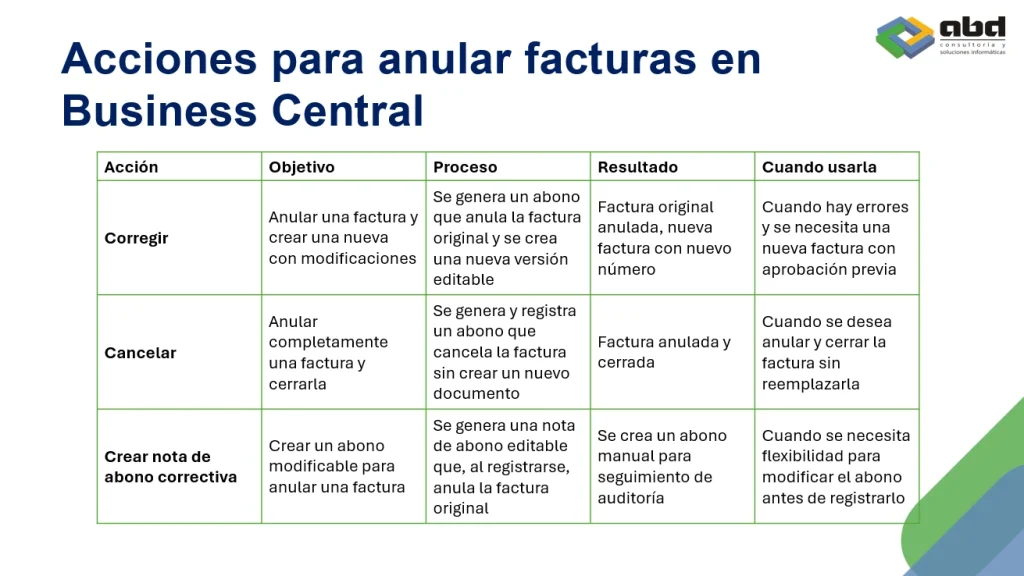
Which option should you choose?

Choosing between correcting, canceling, or creating a corrective credit memo in Business Central depends on the specific situation:
- Use Correct if you need a new invoice.
- Use Cancel if you only want to void the invoice without replacing it.
- Use Create corrective credit memo if you need extra flexibility.
At ABD Consulting, we are specialists in Dynamics 365 Business Central and can help you implement best practices in invoicing and financial management.
Contact us to optimize your ERP and ensure safer, more efficient processes.