

Did you know that Microsoft Copilot has memory and can store information to improve your future interactions? This feature is one of the major innovations in Microsoft’s AI tools, and it can make a real difference in how you work every day.
In this article, we’ll show you how to manage memory in Copilot step by step, what benefits it offers, and how to configure it to boost your productivity.
What is memory in Microsoft Copilot?
La memoria de Copilot es el sistema mediante el cual la herramienta puede recordar información de interacciones previas para ofrecer respuestas más personalizadas y contextuales. La memoria de Copilot funciona como un sistema de “recuerdos”. Guarda datos basados en:
- Relevant prompts you use frequently.
- Direct instructions when you ask it to remember something specific.
This allows Copilot to adapt to your working style and provide provide faster, more personalized responses.
Example: If you tell it, “remember that reports must be exportable to Word and Excel,” Copilot will store this preference and apply it automatically in future requests.
How to manage memory in Microsoft Copilot
Accessing memory settings
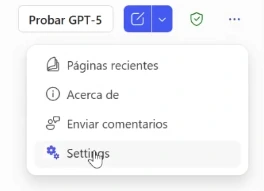
- Open Copilot and click the three‑dot options menu.
- Go to Settings.
- Look for the Copilot Memory section.
Available options
In this panel, you can:
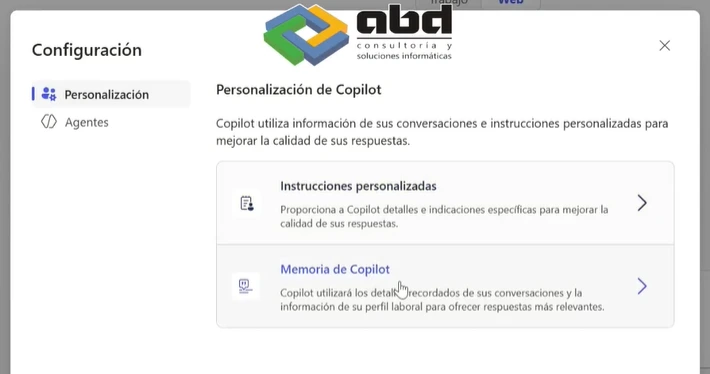
- View the memories stored by Copilot.
- Add memories manually using your own instructions.
- Delete individual memories that are no longer useful.
- Clear all memory with a single click.
- Disable memory if you prefer that Copilot does not store information automatically.
Cómo funciona la memoria en Microsoft Copilot
Copilot utiliza distintos mecanismos para gestionar la información, dependiendo del entorno (Microsoft 365, Copilot web, etc.).
Memoria contextual vs memoria persistente
- Memoria contextual: solo durante la sesión
- Memoria persistente: puede mantenerse entre sesiones
Cómo influye en las respuestas
- Ajusta el tono y contenido
- Reutiliza información previa
- Reduce la necesidad de repetir instrucciones
Benefits of using Copilot’s memory
Configuring this feature properly will help you:
- Save time by avoiding repeated instructions.
- Maintain consistency in recurring tasks.
- Boost productivity, as Copilot adapts to your way of working.
- Personalize your experience with small adjustments that lead to major improvements.
According to Microsoft, the use of AI tools like Copilot can increase employee productivity by more than 20% in repetitive administrative tasks.
Problemas comunes con la memoria de Copilot
Copilot da respuestas incorrectas por contexto previo
Solución: reiniciar la conversación o reformular el prompt
Información antigua afecta a nuevas respuestas
Solución: eliminar historial o aclarar el contexto
Falta de control sobre los datos
Solución: evitar introducir información sensible
Tips to optimize Copilot’s memory
- Use clear and specific instructions when asking it to remember something.
- Keep your memory organizedby removing items you no longer need.
- Review the settings regularly to align the experience with your goals.
- Combine memory with other Microsoft Copilot features, such as integration with Outlook, Word, and Excel.
Frequently Asked Questions
Can I disable Copilot’s memory at any time?
Yes, you can pause it or delete it completely from the settings menu.
Does Copilot store sensitive information?
Microsoft states that memory is managed under high security standards, and you can always delete stored data manually.
Is memory the same across all Microsoft 365 apps?
Currently, it depends on each integration, but it is gradually being expanded across the entire suite.
¿Copilot guarda mis conversaciones?
Depende del entorno y la configuración, pero puede utilizar el contexto de la sesión para mejorar respuestas.
¿Se puede borrar la memoria de Copilot?
Sí, eliminando el historial o reiniciando la sesión.
¿Dónde se almacenan los datos de Copilot?
En el entorno de Microsoft utilizado (como Microsoft 365), bajo sus políticas de privacidad.
¿Cómo evitar que Copilot use información previa?
Iniciando nuevas sesiones o utilizando prompts sin contexto previo.
Conclusion

The memory feature in Microsoft Copilot can truly transform the way you work. Managing it effectively means having an assistant that understands your preferences, remembers your needs, and helps you become more productive every day.
At ABD Consulting, we specialize in the implementation and training of Microsoft 365. If you want to get the most out of tools like Copilot, get in touch with us and we’ll guide you through the process.