

Copilot’s temporary chat is one of the most useful and least-known features of Microsoft 365. It allows you to send private prompts that are not stored on the platform, making it ideal for people who use Copilot daily and need to make sensitive queries or simply keep them separate from work.
In this guide, we explain what it is, what it’s for, and how to enable it step by step, with real examples so you can start using it today.
https://youtu.be/NhnXpPNoDp0
What is Copilot’s temporary chat and what is it for?
The temporary chat in Microsoft Copilot is a conversation mode that does not retain any history, neither in the user’s cache nor on the platform, regardless of your Microsoft 365 retention policy.
Situations in which it is especially useful
- Personal queries you don’t want to mix with your work activity.
- Quick prompt tests you don’t need to save.
- One‑off searches that shouldn’t become part of your work history.
- Requests you want to discard without being recorded in Microsoft 365.
This feature adds an extra layer of privacy and control over your daily interactions with Copilot.
How to enable temporary chat in Microsoft Copilot (step by step)
Enabling this feature is extremely simple:
- Open Copilot Chat from your Microsoft 365 environment.
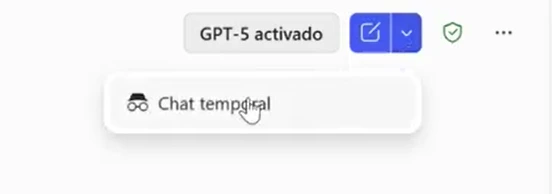
- In the top right corner, click the small arrow in the menu.
- Select the “Temporary chat” option.
- The system will display a notice indicating that:
- No memories will be created.
- No history will be saved.
- The session will not be stored in your platform.
Once enabled, everything you type in Copilot will be processed without leaving any trace in your tenant.
Advantages of using temporary chat in Copilot
Enhanced privacy
No interaction is stored.
Convenience and speed
It’s perfect for brief or personal queries.
Clarity in your workflow
You avoid “cluttering” your history with prompts you don’t need to keep.
Ideal for heavy Copilot users
If you work constantly with artificial intelligence, this mode lets you separate professional use from personal or experimental use.
Real examples of using temporary chat
- Quick search for a recipe, definition, or anecdotal fact.
- Testing variations of a prompt without them piling up in your history.
- Generating a query about a topic unrelated to your company.
- Getting personal ideas you don’t want associated with your professional activity.
Does it affect security or compliance in Microsoft 365?
No. Temporary chat respects your organization’s retention policy, but it does not generate new records.
This means that:
- It does not compromise security.
- It does not alter the tenant configuration.
- It does not generate new data to audit or classify.
Even so, it is advisable for administrators and users to be aware of this feature to avoid misunderstandings regarding compliance.
Tips to get even more out of Copilot with temporary chat
- Use it whenever you need to test prompts without consequences.
- Combine it with Copilot Studio if you develop agents or workflows.
- Take advantage of it for quick, personal, or experimental queries.
- When you need to save the interaction, switch back to the standard chat.
ABD your partner in implementing AI in your company.

The Copilot temporary chat is a simple yet incredibly useful feature for those who use AI daily and need to work with privacy and flexibility. It allows you to send private prompts without them being stored in your platform and without affecting your Microsoft 365 configuration.
If you want to learn more about Copilot, Microsoft 365, or how to implement these tools in your company, get in touch with ABD Consulting and IT Solutions.
We are specialists in Microsoft 365, Azure, and AI‑driven automation, and we can help you take your productivity to the next level.