

Do you want activate Copilot Frontier to try the upcoming Microsoft 365 AI features before their general release? Microsoft allows admins to add users from the organization to this early access program and control who can use its experimental features.
The Frontier program is designed to test new capabilities of Microsoft Copilot, AI agents, and other Microsoft 365 experiences before they become generally available. These features are in preview, so they might change as they evolve.
In this article (and vídeo) we explain what Copilot Frontier is, what requirements you should check, and how to manage access from the Microsoft 365 Admin Center.
What is Microsoft Copilot Frontier?
Microsoft Frontier is an early access program that lets organizations try out emerging AI capabilities in Microsoft 365 before they’re generally available.
The goal isn't just to offer new features before everyone else. Frontier lets IT teams be able to:
- Evaluate new Microsoft Copilot agents.
- Try out artificial intelligence experiences in a preview version.
- Check its suitability for the company's processes.
- Prepare for a wider rollout in the future.
- Provide feedback to Microsoft on the features tested.
Access is managed within the Microsoft 365 tenant. Admins stay in control of which users can access the Frontier features available in the organization.
What does it mean for a function to be in Frontier mode?
When an application, agent, or feature appears labeled as Frontier, it means that it is available in advance for review.
This isn't a generally available feature. It may evolve, change its behavior, or require additional requirements before its final release. For this reason, it's a good idea to start using it with selected users and in controlled scenarios.
Requirements to activate Copilot Frontier

Before enabling the program, it's important to check the admin permissions, licenses, and the actual needs of the organization.
Necessary administrative roles
According to Microsoft’s documentation, the setup requires an account that has one of these roles:
- AI Administrator.
- Security administrator.
- Office app manager.
Microsoft also recommends checking that the selected users have the licenses assigned for the Frontier features they want to try. For example, features related to Copilot require the appropriate Microsoft Copilot license.
Microsoft 365 Copilot Licenses
Access to Frontier experiences depends on the subscription, the user's role, and the specific functionality.
Employees who are going to use Frontier features related to Copilot must have an active Microsoft 365 Copilot license assigned to their account. Some functions may have additional setup requirements.
Selection of pilot users
Although Microsoft allows managing Frontier across the entire organization, a limited initial rollout makes it easier to evaluate.
As a practical recommendation, a pilot group can be created made up of users who:
- They usually work with Microsoft 365 Copilot.
- Get to know the processes that you want to improve.
- They can identify incidents or limitations.
- Document the results obtained.
- Use appropriate information for a testing environment.
This selection helps test the new features without immediately rolling out access to the whole company.
How to activate Copilot Frontier in Microsoft 365
Frontier management is done through the Microsoft Copilot options available in the Microsoft 365 environment. Microsoft says that admins can enable the program and set up access for the entire organization or for specific groups.
1. Access the Microsoft 365 Admin Center
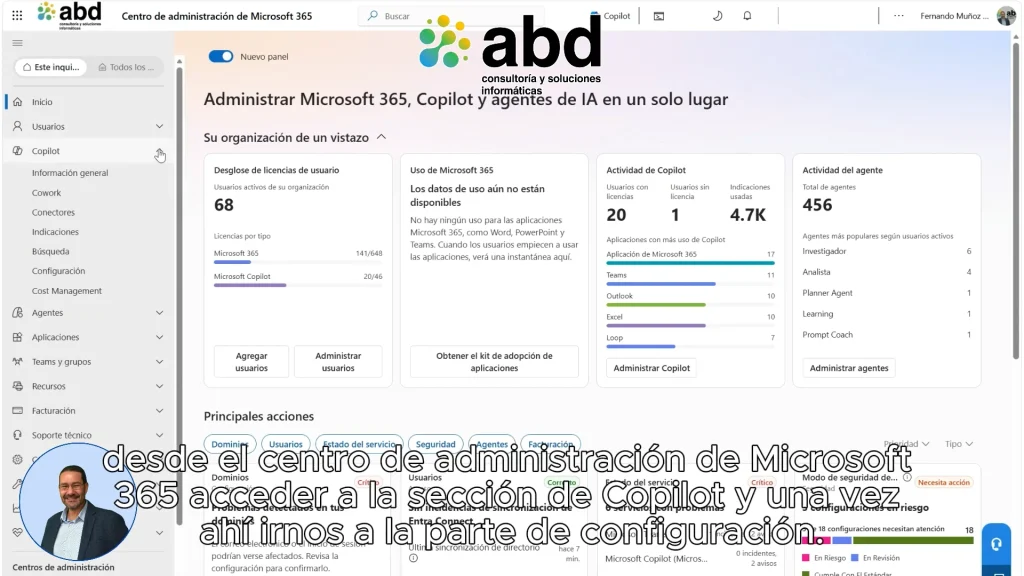
The first step is to sign in to the Microsoft 365 Admin Center with an account that has the necessary permissions.
Before continuing, make sure that:
- The account has a compatible admin role.
- The Copilot licenses are assigned to the selected users.
- The users or groups that will participate in the test have been defined.
2. Open Copilot settings
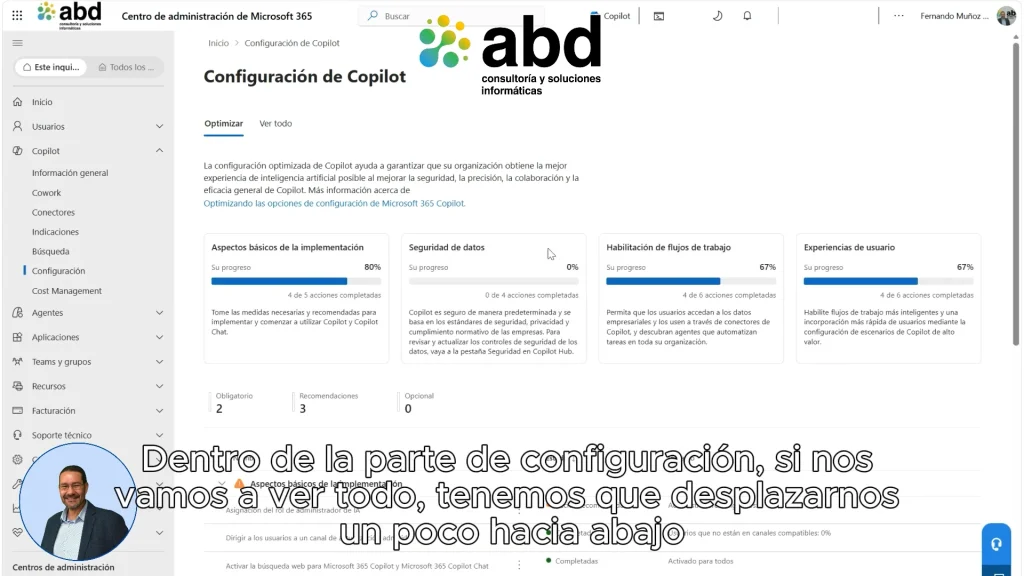
Within the Admin Center, go to the Microsoft Copilot section and open the configuration options available for the organization.
The exact names and locations of some options may change as Microsoft updates the Admin Center. So, it's a good idea to find the setting listed as Copilot Frontier o Agents and Copilot Frontier.
3. Set up access to Copilot Frontier
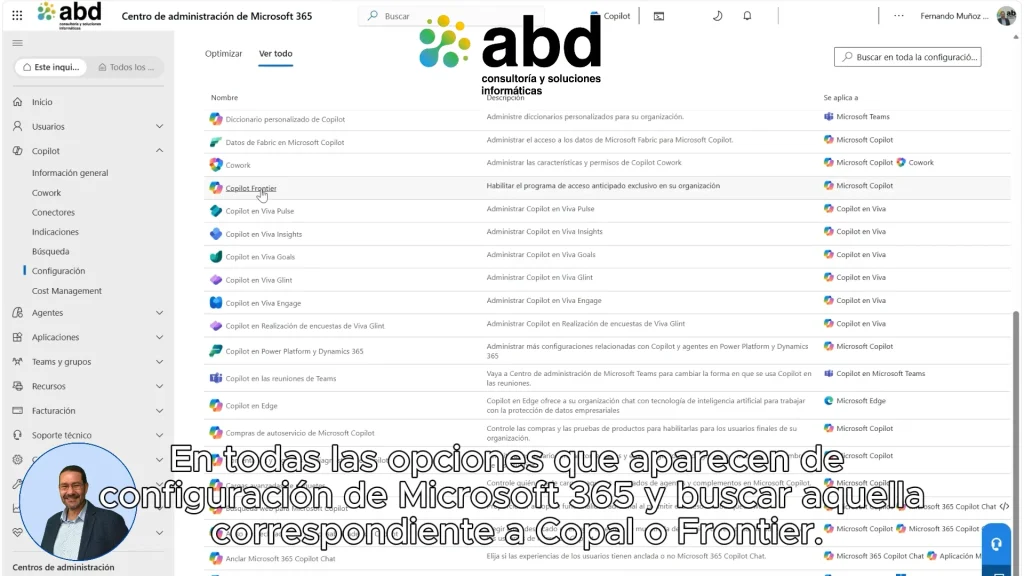
The settings let you decide which users can access Frontier's features.
The available options include:
- Keep the organization without access.
- Allow access to all users.
- Enable access only for certain users or groups.
Microsoft points out that the default access may vary depending on the feature, environment settings, and organizational policies. Therefore, it's a good idea to separately review agent permissions and Frontier's general options.
4. Save and check the settings
Once you've selected the audience, save the changes and make sure the people included meet the license requirements.
Enabling Frontier in the tenant scope doesn't necessarily mean that all users can manage or use any agent. Admins still control which agents and features are available, and some experiences require additional settings.
How do users find Frontier agents?
Once access is enabled, authorized users can open Microsoft 365 Copilot and go to the agent store.
The general process is as follows:
- Sign in to Microsoft 365.
- Open Microsoft 365 Copilot or Copilot Chat.
- Access the agents section or the Agents store.
- Look for the agents labeled Frontier.
- Add the agents available and authorized by the organization.
Availability depends on the license, administrative settings, and the permissions set for each user or group.
Why do some agents include the Frontier tag?
That tag lets you tell apart the agents who are still in an early access phase.
Microsoft offers these experiences so organizations can evaluate their usefulness before a wider release. Since they are in preview, they should be tested with supervision and keeping in mind that their capabilities may change.
Is it worth turning on Frontier for all users?

There isn't a single solution that works for all organizations.
Allowing general access can speed up experimentation, but it also makes it harder to control use cases, collect results, and spot potential issues. For a company that's just starting to work with Frontier, it's usually wiser to set up a pilot group.
When to choose a specific group
Activation by users or groups is especially recommended when:
- The company wants to evaluate a specific agent.
- There still isn't an internal AI usage policy.
- We work with sensitive business information.
- It's necessary to validate the behavior of the functionality.
- They want to measure the impact before expanding access.
The group can start with limited tasks, document the results, and pass the conclusions on to the team responsible for Microsoft 365.
When to expand access
The organization can consider an expansion when it has verified:
- The usefulness of the function in real-life situations.
- The adjustment of the existing permissions.
- The quality and reliability of the results.
- The training needs of the users.
- The necessary controls to keep supervision.
The purpose shouldn't be to activate all possible new features, but to identify the ones that solve real business needs.
Best practices for testing AI agents in Frontier
Early access adds value when it's accompanied by an organized evaluation process.
Define concrete use cases
Before trying an agent, figure out what problem it should solve. For example:
- Gather information to prepare for a meeting.
- Summarize long documents.
- Help to make a first draft.
- Locate information spread across different sources.
- Reduce the time spent on a repetitive task.
A specific goal lets you know if the test really provides an improvement.
Keep human supervision
Frontier features are in preview and subject to change. Users should review the responses, decisions, and actions generated before incorporating them into a business process.
Supervision is especially important when the role gets involved in external communications, corporate documentation, or processes that use sensitive information.
Control access permissions
Agents must respect the Microsoft 365 policies and permissions set by the organization. However, admins should also check who can install, use, or manage each agent.
Not all users need to access all the experimental features. Limiting access reduces risk and makes it easier to evaluate.
Collect results and comments
A useful test should produce clear conclusions. To do this, you can document:
- Which task has been tested.
- How much manual work it used to require.
- What result has the agent produced?
- What corrections have been necessary.
- What limitations have been found.
- If it's worth expanding its use.
These conclusions help decide whether the functionality should be adopted, discarded, or kept under review.
Start checking out the new Copilot features with control

Activating Copilot Frontier lets you get an early look at the capabilities Microsoft is developing for Copilot, AI agents, and Microsoft 365 apps. However, its usefulness doesn't depend solely on turning an option on.
To get results, the organization needs to pick the right users, define specific use cases, review the permissions, and assess each feature before rolling it out.
At ABD Consulting and IT Solutions We help companies prepare, set up, and adopt Microsoft 365 Copilot with a controlled approach. If you need to review licenses, permissions, or the access strategy for Frontier, get in touch with our team to assess the best scenario for your organization.