

How to Manage and Correct Negative Inventory in Dynamics NAV: Practical Guide and Examples
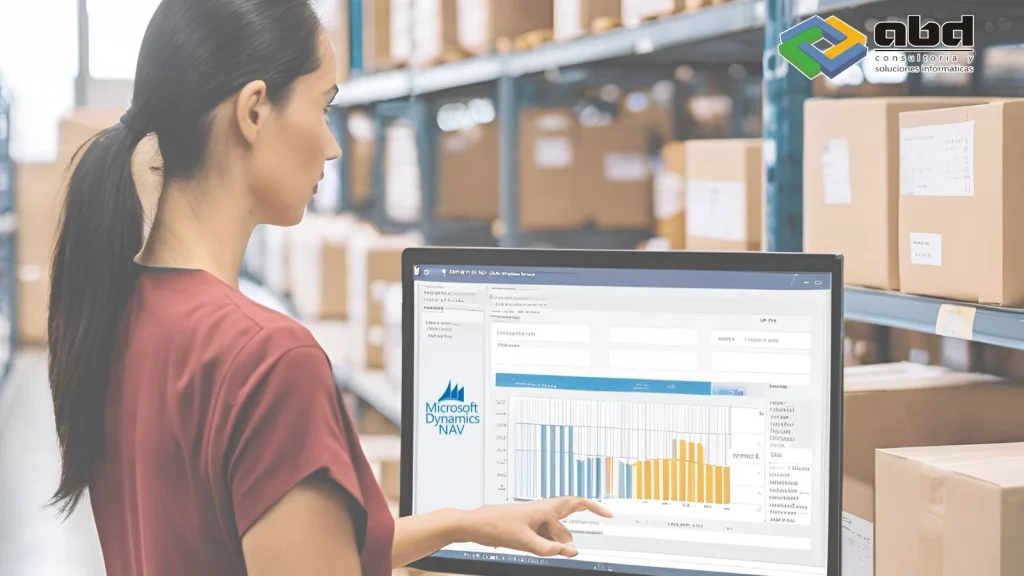
I think we can all agree that, in the real world, negative inventory should never occur. Likewise, inventory accuracy is essential for any company that relies on an ERP system to track its stock.
However, in an ERP, it is very common to see negative quantities in the inventory list. This can be caused by poor inventory accuracy or by “timing issues.”
For example, an item may be consumed in production before the purchase order has been received in the system.
Negative Inventory in Microsoft Dynamics NAV
Possible issues related to negative inventory
Assuming you maintain good inventory accuracy, there should be no negative inventory at the end of the day.

Negative inventory means that your replenishment planning system is using invalid data, resulting in incorrect replenishment recommendations. In addition, your cost management system has no way to reflect the actual inventory, and therefore your stock valuation in accounting is inaccurate — which ultimately affects your financial statements.
Negative inventory examples in Microsoft Dynamics NAV
In Microsoft Dynamics NAV, we can also think of negative inventory as: negative in one warehouse or location and positive in another. For example, in warehouse A the system shows 1 unit, but in warehouse B it shows –1 unit.
When looking at the total, the system displays 0 units, which is accurate from a global perspective. However, as you can imagine, this is not acceptable and must be addressed and corrected.
How to manage negative inventory in Dynamics NAV
An easy way to prevent it in Dynamics NAV would be to adjust the system so that negative inventory is never allowed.

This sounds good in theory, but implementing it in some companies would likely cause a major cultural shock.
You can imagine the reaction if, at the end of the day, the head of sales asks, “Why wasn’t this shipment sent to that customer?” and the answer is, “The system didn’t allow it because it would have resulted in negative inventory.”
Practical solutions to identify and correct negative inventory
In my view, the best approach is to identify the areas that cause negative inventory values and then correct those issues.
However, since there can be many reasons why this occurs, this blog post focuses on the identification of negative inventory and the determination of its cause rather than addressing how to correct the issues. I will reserve that topic for a future post.
Identifying items with negative inventory in Dynamics NAV
Finding items that have negative inventory
Discovering which items have negative inventory “in total” is very easy.
At Dynamics NAV, go to the item list and set a filter for the available quantity to less than zero, which will display a list of items showing negative inventory.
To find items that have negative inventory “in a single warehouse,” you will need to access the item ledger entries table. Follow these steps:
- Go to any item card.
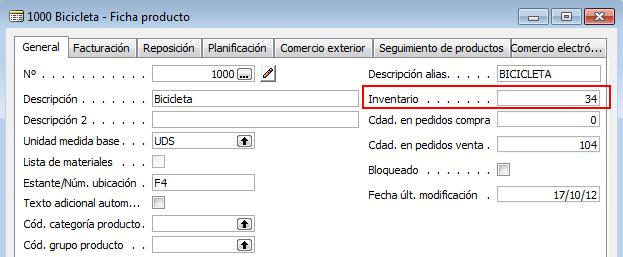
Item Card – Inventory
- Drill down on the Inventory Quantity. This will take you to the item ledger entries page.

Item Card – Item Ledger Entries
- To view the item ledger entries for all items, clear the filters that the system has applied.
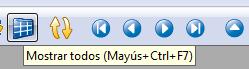
Item Ledger Entries – Clear Filters
The system will display a list of all item ledger entries.
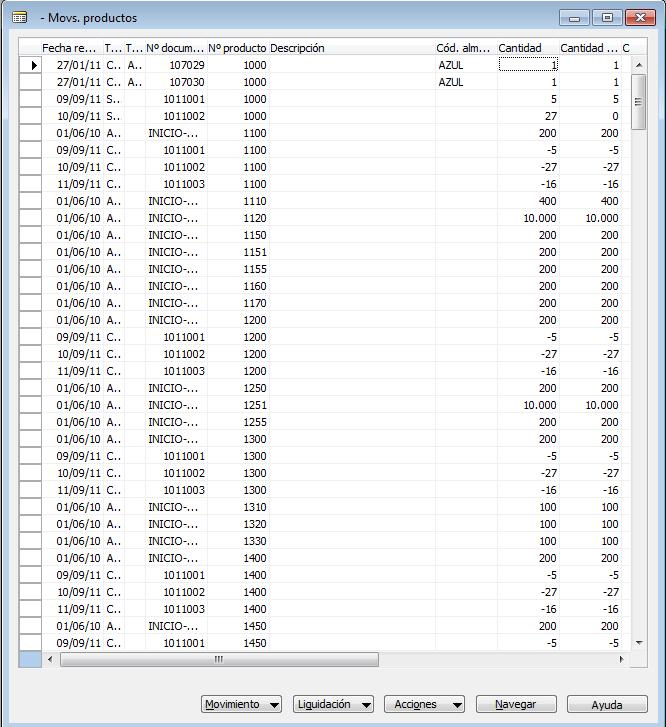
Item Ledger Entries – Show All
- We now want to create a list of all items with negative inventory, whether overall or in a single location. To do this, set a table filter with Positive = No and Open = Yes.
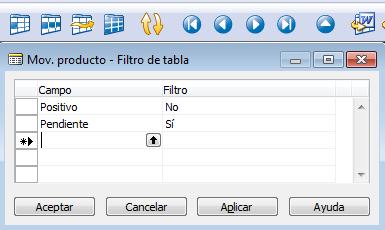
Item Ledger Entries – Negative Filter
The system will display a list of all item ledger entries that need to be corrected.
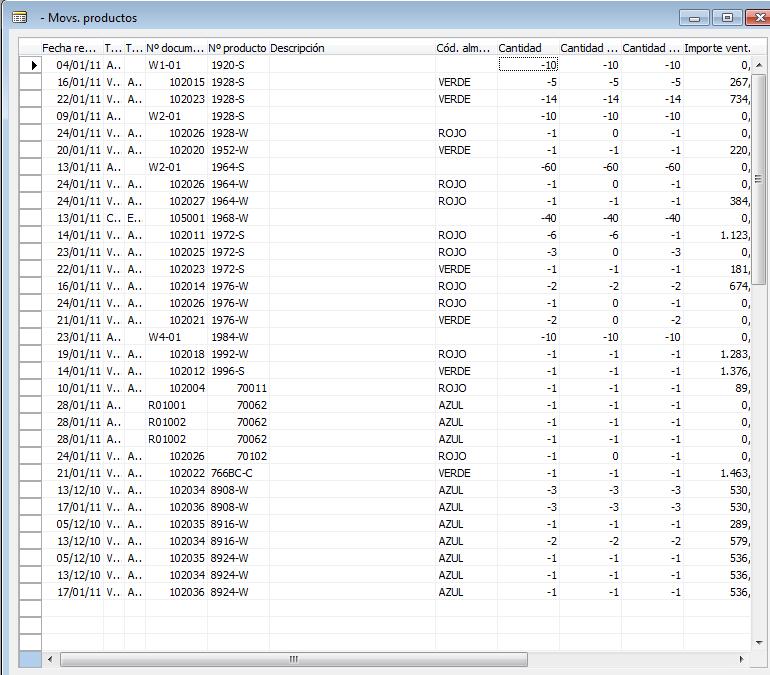
Item Ledger Entries – Show Negative Entries
Procedure to correct negative inventory
Now that you have identified the records with negative inventory, you can correct them.
Keep in mind, however, that inventory values should never reflect a negative quantity, which is why it is so important to first determine the cause of why the inventory became negative before correcting it.
See also: Inventory Periods in Dynamics Business Central
Additional information: Counting, Adjusting, and Reclassifying Inventory
Contact us to improve your inventory management
Do you need help managing negative inventory?
At ABD, we are specialists in Microsoft Dynamics NAV (Navision), D365 Business Central, modules, and ERP extensions, with more than 30 years of experience in the industry.
If you need help managing your inventory effectively, get in touch with us.