

In this post, we will look at how to connect to your Business Central data in order to build a business application with Power Apps. To do this, you must have a valid Business Central (Cloud) account and a Power Apps account.
(Note: To set up this type of account, please contact our team at info@abd.es or through the contact form on abd.es, which you can also find at the end of this post.)
Our goal is to access Business Central data and make it available as a data source in Power Apps.
Let’s go through the steps:
Adding Business Central as a Power Apps Data Source:
1.- In your browser, go to powerapps.microsoft.com and sign in.
2.- On the website, select Apps, then choose Create an app, and select Canvas to create a new canvas app. This app is designed for mobile use, but you can choose a different template if you prefer.
3.- The next step in creating a Power App is selecting the data. Click the arrow icon and choose New connection in the upper-left corner of the page.
4.- From the list of available connections, select Business Central, and then click Create.
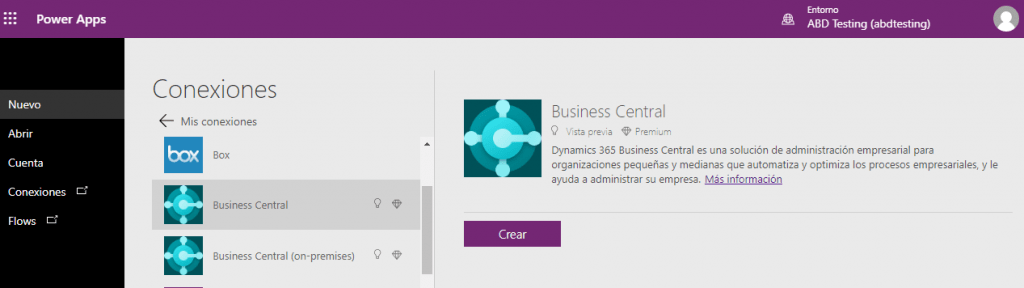
Power Apps will connect to your Business Central environment using the credentials you are currently signed in with. If you are not an administrator in Business Central, you may need to sign in with a different account.
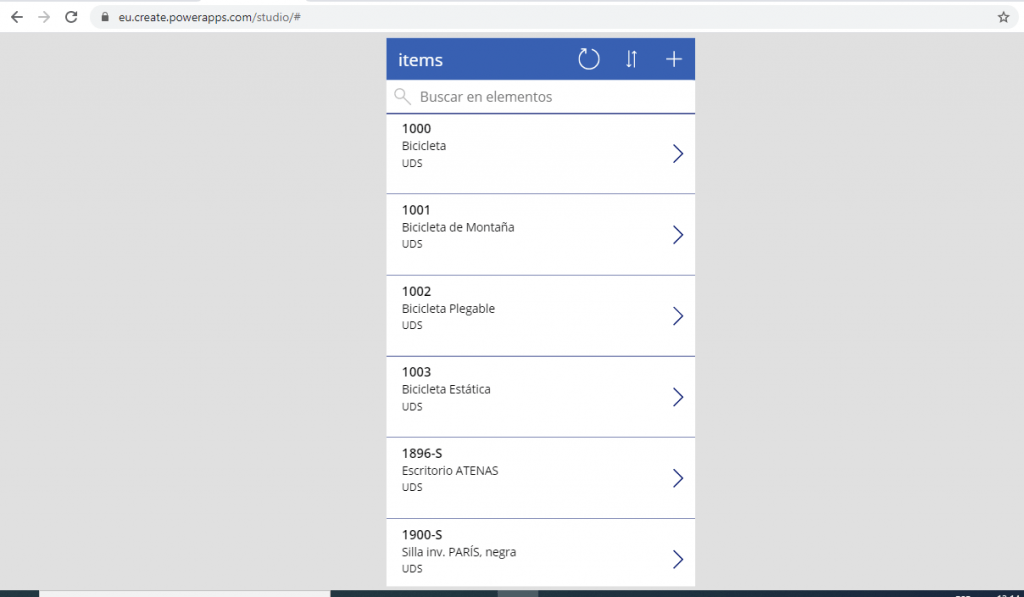
5.- Power Apps will display a list of environments and companies available in Business Central. Select the environment and company that contain the data you want to connect to. You will then be presented with a list of APIs. Choose the API you want to connect to.

These “tables” are part of the Business Central API. You do not need to configure the endpoints yourself — the Business Central connector for Power Apps handles this automatically.
Note: If you want to include data from other Business Central tables in your app, you will need to work with a developer to define a custom API in Business Central and then consume that custom API through a custom connector in Power Apps.
6.- You are now successfully connected to your Business Central data and ready to start building your Power App. You can add additional screens and connect to more Business Central data as needed.
If you would like more information about working with canvas apps created from a Power Apps template, stay tuned for upcoming ABD posts where we will introduce the design possibilities of Power Apps — or contact our team directly at info@abd.es

Once you have designed and built the application, you can share it with your colleagues.
Note: If you want to connect to an on‑premises Business Central environment, you must select the Business Central (on‑premises) connector when choosing the available connection.
Thank you for reading and sharing!
Source: Microsoft Docs — https://docs.microsoft.com/