

In this post, you’ll learn how to sync SharePoint folders or documents to your local device.
In today’s digital world, staying organized and efficient is essential. One effective way to achieve this is by synchronizing your files and documents across different platforms and devices.
We’ll also explore the differences between OneDrive and SharePoint, and show you how to free up space on your hard drive. So grab your favorite drink, relax, and get ready to become an expert in file synchronization.
Step 1: Access SharePoint
Open a web browser and go to your SharePoint site. Then locate the library or folder you want to sync.
Step 2: Find the Sync Button
Once inside the library or folder, look for the Sync button. If you don’t see it, click the three dots (…) and look for the sync option in the menu.
Step 3: Start the Sync Process
Click the Sync button to open a dialog box. Confirm the prompt to begin syncing the library with your local device through OneDrive.
Understanding the Difference Between OneDrive and SharePoint
OneDrive and SharePoint are cloud‑based storage and collaboration platforms offered by Microsoft.
Although they offer similar functionalities, there are some key differences between them. One simple way to distinguish OneDrive from SharePoint is by looking at their icons.
OneDrive is represented by a blue cloud icon, while SharePoint is represented by a building‑style icon.
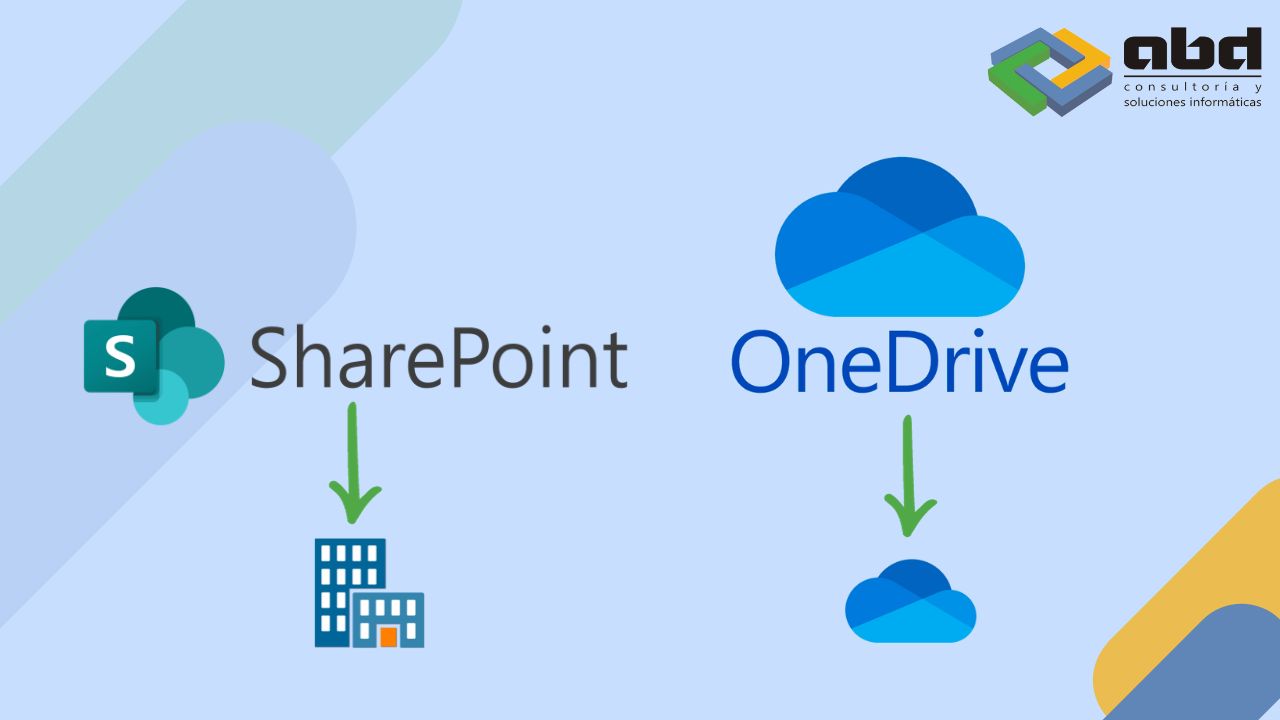
Here are some additional ways to differentiate between OneDrive and SharePoint:
-
OneDrive:
-
- Designed for individual users and personal file storage
- Provides a personal space to store, sync, and share files and folders
- Offers features such as version history, file recovery, and real‑time collaboration
- Accessible through a web browser, desktop app, or mobile app
-
SharePoint:
-
- Designed for team collaboration and document management
- Provides a centralized location for teams to store, organize, and share files and information
- Offers features such as document libraries, lists, workflows, and customizable web pages
- Accessible through a web browser, desktop app, or mobile app
When syncing files and folders between your local device and these platforms, it’s important to know which one you’re working with. The different OneDrive and SharePoint icons help you easily identify and manage your synced files and folders.
Additional Tip: Free Up Hard Drive Space
If you want to free up space on your hard drive, you can remove synced files and folders. Look for items marked with a green checkmark icon to identify files stored locally.
What Are the Benefits of Syncing SharePoint Folders with OneDrive?

- Offline file access: By syncing SharePoint folders with OneDrive, you can access and work on your files even when you’re not connected to the internet. This is especially useful for users who travel frequently or work in areas with limited connectivity.
- Enhanced collaboration: Syncing SharePoint folders with OneDrive enables smooth collaboration with team members. You can easily share files and folders, control access permissions, and track changes made by others.
- Faster file access: Syncing SharePoint folders with OneDrive provides quicker access to files and documents because they are stored locally on your device. This can significantly improve productivity, especially when working with large files or in environments with slow internet connections.
- Automatic updates and backups: OneDrive automatically syncs your files and folders, ensuring you always have the latest version available. It also provides a backup layer for your files, protecting them from accidental deletion or device failure.
- Simplified file management: Syncing SharePoint folders with OneDrive allows you to organize and manage your files more efficiently. You can move, rename, and delete files and folders easily, and changes are automatically reflected in both SharePoint and OneDrive.
We hope this guide has been helpful for syncing SharePoint folders or documents to your local computer.
If you need further assistance, feel free to reach out to us.
At ABD, we’re here to help you get the most out of your SharePoint experience.