


There are improvements that, at first glance, seem small, but later are the kind that you really appreciate in everyday life.
One of them comes to Business Central with a very simple idea: see directly in the lists who created or modified a record, without having to go through each item one by one or ask through Teams, email, or in the hallway.
Until now, when there were doubts about an order, an invoice, an item, or a configuration line, many times you had to open the record, check additional information, or ask the team:
Who's changed this?
Who created this order?
"Who touched this item yesterday?"
With this new feature, Business Central starts to show that information in a much more visual way: through ... avatars.
To activate them, from any list:
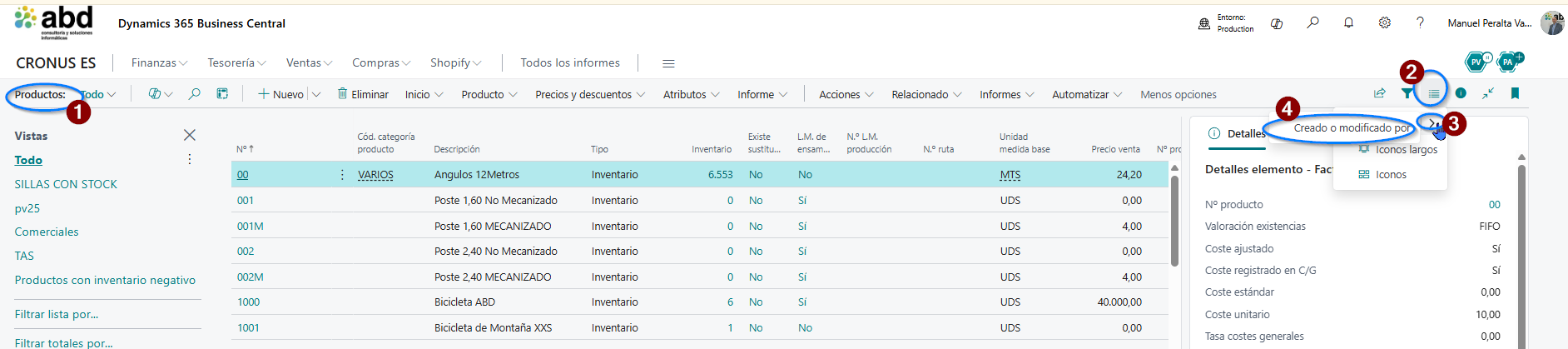
What are avatars in Business Central?
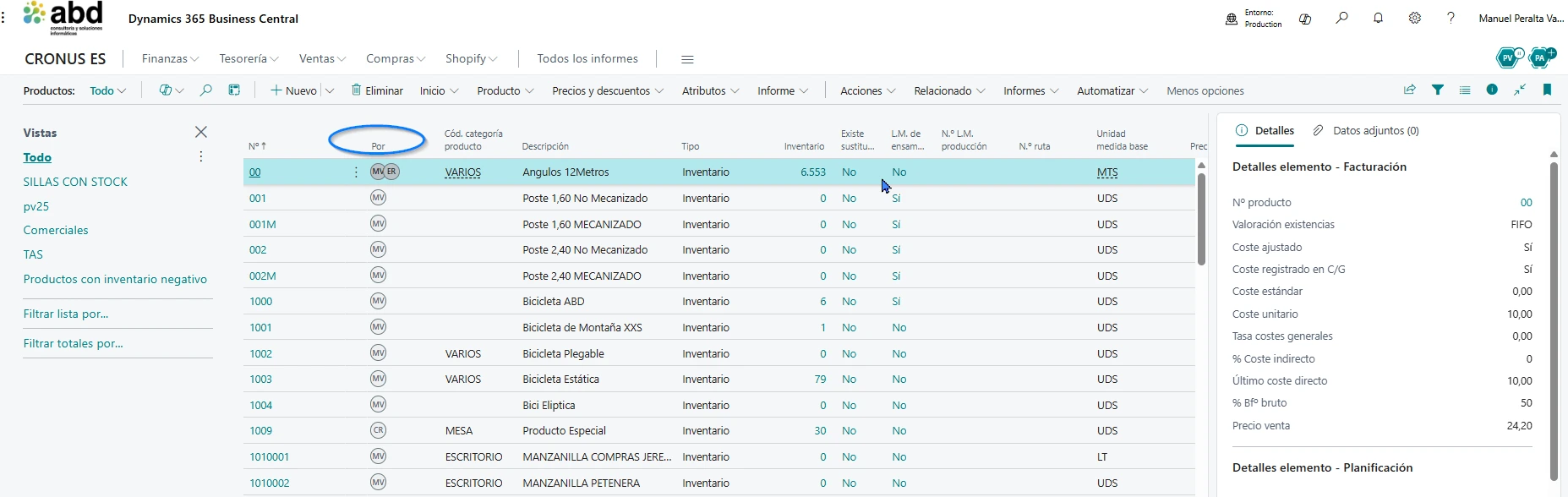
Avatars are those little circles with the user's picture, initials, or ID that show up in the Business Central lists.
The idea is very practical: instead of just seeing data and columns, the list itself can show you who created the record and who last modified it. And the best part is that you don't have to open the document to see it.
For example, in a sales order list, you might see something like this:
- Order SV-1001 created by Ana.
- Order SV-1002 modified by Carlos.
- Order SV-1003 created by a system user or even by an AI agent.
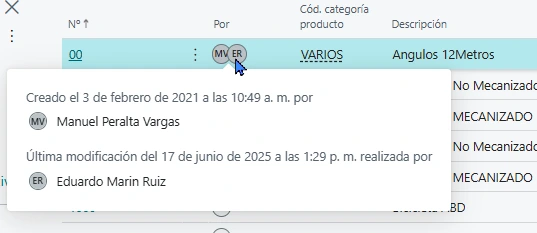
And if you hover the mouse over the avatar, Business Central can show a small window with more information, like the full name and the date/time associated with the profile or update, as long as that data is available.
Why does this feature improve daily work?
Because Business Central already has a lot of information, but it doesn't always show it in the most user-friendly way.
This feature turns data that already existed—like 'created by' or 'modified by'—into something much easier to understand at a glance.
And that, in a real company, shows.
- You can tell when several users are working on the same orders.
- You can tell when management and the warehouse share data.
- You can tell when billing needs to clarify a change.
- You can tell when there are automations or agents creating records.
- And you can tell when you just want to work without wasting time looking for who's responsible.
Conclusion
The new avatars in Business Central lists make the system a bit clearer, more collaborative, and more comfortable for the end user.
They don't change the way we work from top to bottom, but they do help with something very everyday: to know who has created or modified a record without having to open it.
And sometimes, those little improvements are the ones that have the biggest impact on day-to-day life.
Because when information is visible, the team works with fewer doubts, fewer interruptions, and more confidence.
Discover all the latest updates of Business Central with ABD

At ABD Consulting and IT Solutions we help companies get the most out of Microsoft Dynamics 365 Business Central, incorporating the new features that Microsoft releases in each update.
If you want to keep your ERP always up to date, learn about the latest news, or have an expert team to implement, evolve, or customize Business Central, we’ll be happy to help you.