

The Business Central Expense Agent uses artificial intelligence to automate expense management, from capturing a receipt to creating the report, reviewing it, and the approval process.
For many companies, managing employee expenses still involves a series of manual tasks: saving receipts, entering data, calculating mileage, preparing reports, checking receipts, and finally transferring all that information to the ERP.
The new Expense Agent de Business Central change this process. The employee can upload a photo or a PDF of a receipt, email it, or directly create a mileage expense. The agent uses AI to extract the relevant data, categorize the expense, and prepare the information for review.
The result is a process more connected with Business Central, in which automation takes care of a good part of the administrative work and the user keeps control over the review and approval of expenses.
https://youtu.be/JKpFaZhFfus
What is the Business Central Expense Agent?
The Business Central Expense Agent, also known as Expense Agent, is an artificial intelligence-based feature that automates different phases of employee expense management.
Its operation practically covers the entire spending cycle:
- The employee uploads or sends a receipt.
- The AI analyzes the document.
- Extract information like merchant, amount, date, currency, and payment method.
- Categorize the expense according to the company's setup.
- Create the expense record.
- Group the expenses in reports.
- The employee checks and corrects the information if necessary.
- The report is being sent for your approval.
- The people in charge review and approve the expense.
- The approved expense can move forward to its accounting in Business Central.
Therefore, it's not just a tool for reading tickets with AIThe goal is to automate the entire expense management flow.
How does the Expense Agent work in Business Central?
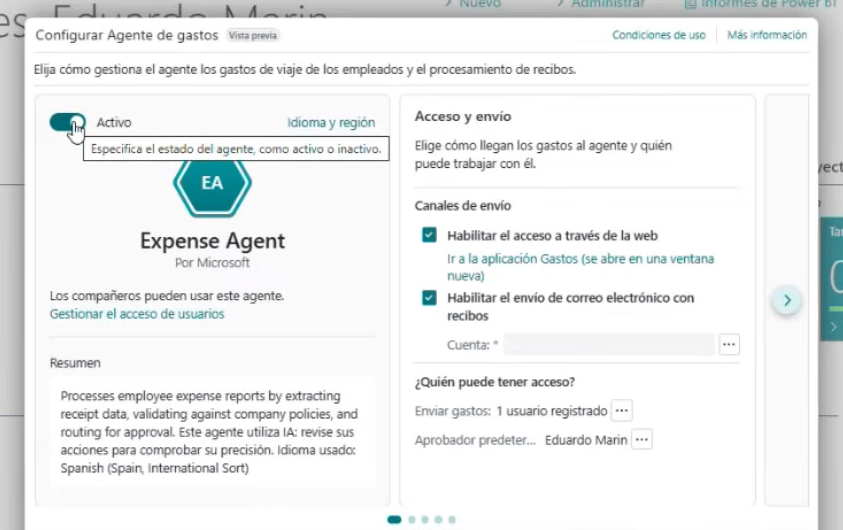
The key to the Expense Agent is that artificial intelligence is integrated into a structured business process.
1. The employee sends the receipt
The process starts when the employee has an expense that they need to report to the company.
You can, for example:
- Take a picture of a receipt.
- Upload an image.
- Upload a PDF.
- Send the receipt by email.
- Use the Expense Agent web app.
Currently, the Expense Agent web app allows you to upload receipts directly, and there is also a shared inbox to receive expenses sent by email. Formats like JPEG, PNG, and PDF are accepted.
This removes one of the most common tasks in traditional expense management: manually enter all the ticket data into the ERP.
2. Artificial intelligence pulls the data
Once the receipt is received, the agent analyzes its content.
You can identify information such as:
- Name of the establishment or merchant.
- Expense date.
- Total amount.
- Coin.
- Payment method.
- Expense category.
- Line information when a breakdown is required.
For example, let's imagine that an employee has a work lunch and gets a receipt.
Instead of having to enter manually:
Restaurant X — 09/09/2026 — €86.40 — Meals
The AI analyzes the receipt and suggests that data automatically.
The user You should check the information you gathered before submitting the expense, especially because the quality of the document can affect the accuracy of the extraction. Microsoft recommends checking and confirming the data before saving and submitting the expense.
Automatically categorize expenses
Automation doesn't end when the AI reads the ticket.
The expense agent can also categorize the expense using the categories and subcategories set up in Business Central.
For example:
| Expense | Category |
|---|---|
| Meal with a client | Restoration |
| Hotel | Accommodation |
| Fuel | Transport |
| Taxi | Displacement |
| Office supplies | Supplies |
| Mileage | Displacement |
This allows the information to reach Business Central with a coherent structure, ready for the next steps in the process.
Also, the spending rules set by the company can be used to check if certain expenses comply with internal policies.
Mileage expenses in Business Central
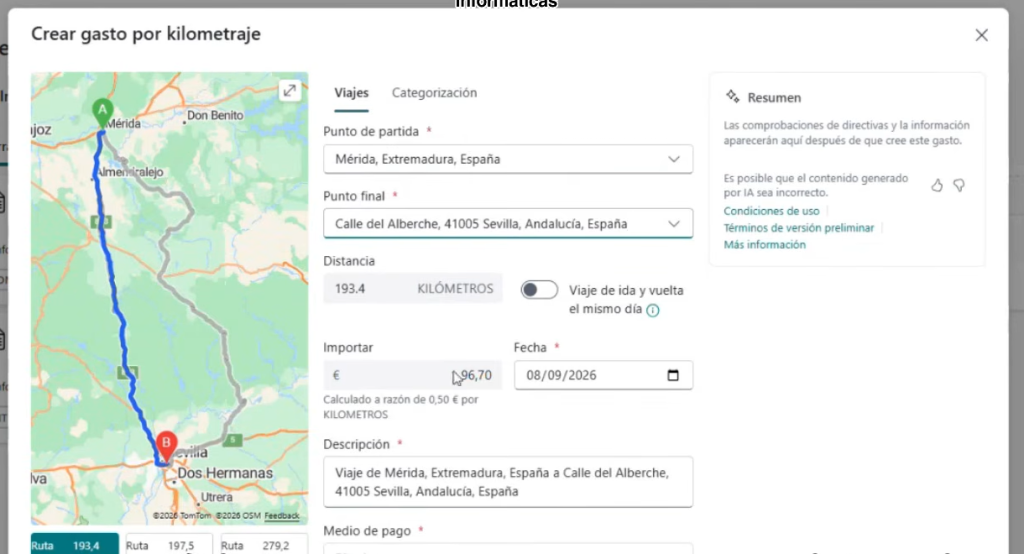
One of the features we show in the video is especially interesting for companies whose employees travel: mileage management.
The worker doesn't need to have a receipt to record this type of expense.
You can indicate:
- Starting point.
- Destination point.
- If the trip is round trip.
- The corresponding route.
Business Central calculates the distance based on the selected route and applies the mileage rate set by the company to determine the amount of the refund.
Example: a trip from Mérida to Seville
Let's imagine that an employee has to travel from Let's imagine that an employee has to travel from
From Expense Agent, you can enter the origin and destination.
The system shows the available routes, and the user selects the one that matches their trip. If it's a round trip, they can indicate it so the total distance is taken into account.
From there, the mileage rate set by the company applies.
The employee doesn't have to calculate manually:
kilometers traveled × rate per kilometer = travel cost
The system takes care of doing that calculation.
From a receipt to an expense report
One of the important differences compared to a manual process is that the expenses don't end up isolated.
The expense agent can group expenses within expense reports.
For example, an employee who takes a three-day trip could accumulate:
- Hotel.
- Restaurants.
- Taxi.
- Fuel.
- Mileage.
- Other expenses associated with the trip.
Instead of sending each receipt separately, the expenses can be part of the same one expense report.
This makes things easier both for the employee's work and for the follow-up review by the manager.
Microsoft says that the agent can automatically create expense reports and group the related expenses within them.
The employee checks the data before sending it
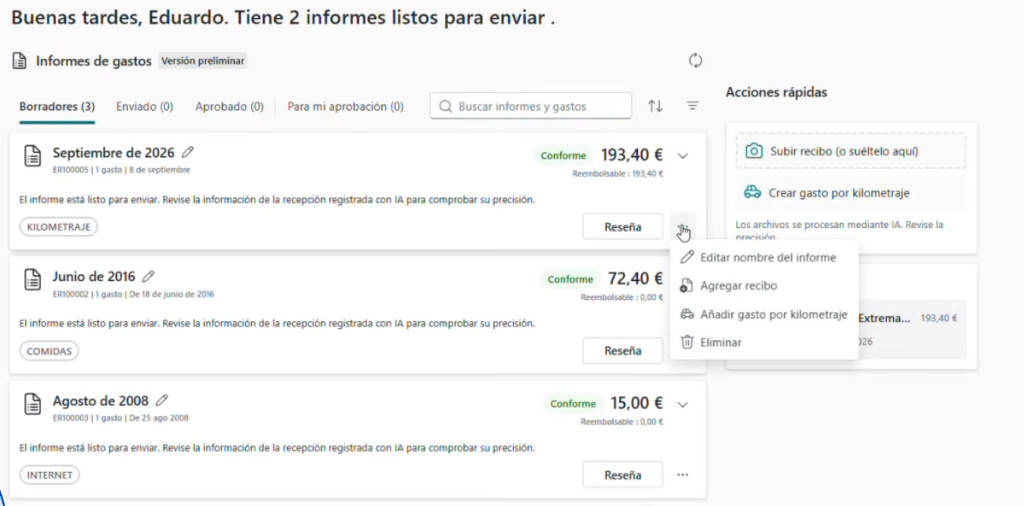
Here's an important point when we talk about automation with artificial intelligence.
Automating doesn't mean getting rid of human supervision.
The Expense Agent suggests the extracted and categorized data, but the employee can review, modify, and confirm that it's correct before sending the report.
For example, if the AI misinterprets the name of a place or assigns the wrong category, the user can correct the information.
This is especially important when working with photos of low-quality receipts, folded documents, or slips with hard-to-read information.
Approval of expenses in Business Central
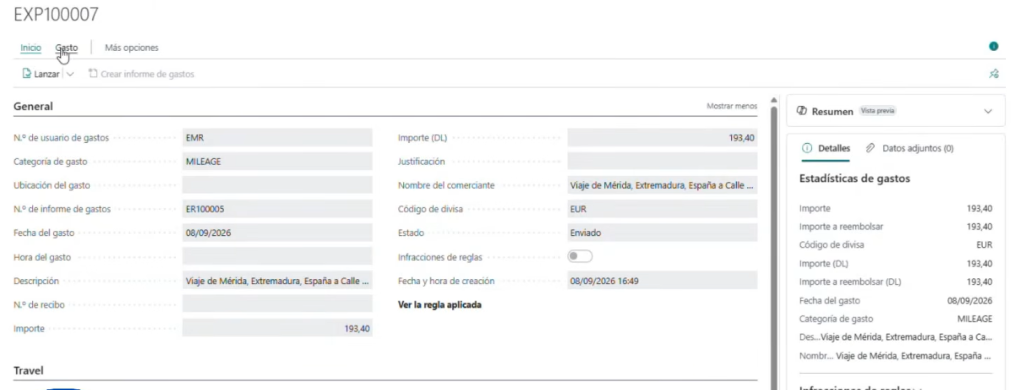
Once the report has been reviewed, the employee can send it for approval.
From that moment on, the responsible person can review the expenses and decide if:
- Approve the report.
- He/She returns it to make modifications.
- Request additional information.
Business Central allows you to set up workflows and approval rules, so that the process does not rely solely on email communications.
The report goes through different states as it moves along the process, like draft, sent, and approved.
This brings something especially important for the finance department: traceability.
Instead of having receipts scattered across emails, Excel sheets, and shared folders, expenses are integrated within a structured process.
What happens when an expense gets approved?
Once the report is approved, the process continues within Business Central.
The information can be used to carry out the corresponding registration and generate the associated accounting entries.
This allows you to go from:
Ticket → Excel → email → review → manual entry in ERP
to a much more integrated flow:
Ticket → AI → expense → report → approval → Business Central
And this is precisely one of the most interesting advantages of the Expense Agent: Automation doesn’t stop at capturing the document; it also connects the expense to the company’s financial process.
What advantages does the Expense Agent offer?
The main advantage is the reduction of manual work, but it's not the only one.
Less manual data entry
AI automatically extracts information from the receipt, reducing the amount of data the employee has to enter.
Fewer transcription errors
By reducing manual input, certain errors from copying amounts, dates, or supplier information are also cut down.
Faster approval processes
Reports can be generated and sent for approval without waiting for someone to manually collect all the receipts.
Greater control of expenses
The categories, rules, and policies set up in Business Central allow you to establish criteria to review expenses before approving them.
Improved traceability
Each expense can be linked to its receipt, report, and status within the process.
More time for the finance department
If the repetitive tasks of data entry and preparation are automated, the finance team can spend more time on analysis and oversight instead of entering data.
Business Central Expense Agent: what can be automated?
We can sum up the main possibilities in this chart:
| Process | Traditional management | With Expense Agent |
|---|---|---|
| Screenshot of the ticket | Manual | Carga, foto o email |
| Extracción de datos | Manual | AI |
| Categorization | Manual | Automatic according to settings |
| Mileage | Manual calculation | Route and automatic calculation |
| Expense report | Manual preparation | Automatic grouping |
| Validation | Manual | Rules and policies |
| Approval | Defined flow | Integrated into the process |
| Register | Later introduction | Integrated with Business Central |
Automation doesn't mean that every step is completely autonomous. User review is still a key part of the process, especially before sending and approving expenses.
How do I activate the Expense Agent in Business Central?
The setup is done from Business Central through a guided setup experience.
The administrator must configure, among other things:
- Categories and subcategories of expenses.
- Accounting groups.
- Payment methods.
- Users with access.
- Channels to send receipts.
- Mailbox used for mail deliveries.
- Rules and policies.
- Mileage rates.
- Options related to diets.
- Approval flows.
Microsoft recommends using the guided setup to get the agent running and then making any necessary adjustments to fit each company's policies.
Once the setup is complete, the admin turns on the agent, and it can start processing expenses.
Also, there are requirements related to permissions, mailbox setup, enabled features, and consumption-based billing. That’s why, before turning on Expense Agent, it’s a good idea to check the conditions that apply to your specific Business Central environment.
What sets the Expense Agent apart from traditional management?
The fundamental difference is in where the work is done.
In a traditional process, the employee is usually responsible for a good part of the information entry:
Pick up ticket → save ticket → enter data → calculate mileage → prepare report → send → wait for approval.
With Expense Agent, some of those tasks become automated:
Upload receipt → AI extracts the data → review → send → approve → register in Business Central.
This doesn't make the process completely automatic, but it does significantly reduce repetitive administrative tasks.
And that's where the real value of an AI agent applied to an ERP lies: It doesn't just answer questions, but also takes part in a specific business process.
Expense agent and the future of AI in Business Central
The Expense Agent is a good example of how artificial intelligence is evolving within Business Central.
AI stops being just a tool for looking up information and starts getting involved in specific business processes.
In this case, the agent can:
- Receive information.
- Interpret documents.
- Extract data.
- Classify expenses.
- Apply rules.
- Prepare reports.
- Request user intervention when necessary.
- Make the approval process easier.
- Take the information to the financial environment of Business Central.
This fits with the evolution of Business Central into an ERP with Copilot and agents capable of automating tasks and business processes. Microsoft is gradually incorporating these capabilities into different areas of the product.
Conclusion: automating expenses with Business Central

The Business Central Expense Agent it allows turning a traditionally administrative process into a much more automated flow.
An employee can upload a ticket, send a receipt, or log a trip. Artificial intelligence takes care of extracting and organizing the information, while Business Central centralizes expenses, reports, rules, approvals, and later records.
The goal is not simply reading tickets with AI, but to connect the entire expense management process within the ERP.
If your company spends too much time collecting receipts, entering expenses, reviewing reports, or calculating travel, this new Business Central feature could be an opportunity to automate repetitive tasks and improve financial control.
Do you want to find out how the Expense Agent can fit into your Business Central? Get in touch with ABD and we analyze with you the automation possibilities of your ERP.