

Discover how to optimize the performance of your Power BI reports with Slicer Buttons. Learn how to add and customize the "Apply all" and "Clear all" buttons to reduce unnecessary queries.
In Power BI reports, it's common to have many slicers that can affect performance. To solve this, consider adding "Apply all slicers" and "Clear all slicers" buttons to your page. This way, you can reduce the number of unnecessary queries every time you apply or clear a filter in a slicer.
To add the "Apply all slicers" button, go to the corresponding page, expand the buttons menu, and select "Apply all slicers". You can customize the button like any other.
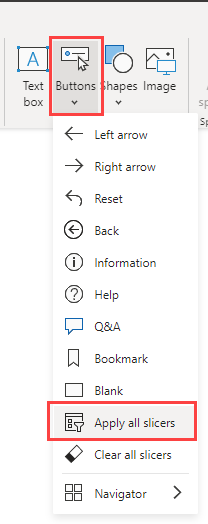
Once the button is present on your page, all slicer-type visuals will depend on it. Any selection you make in them will be displayed with a pending icon until you press the button "Apply all slicers".

When you click on it:

You can also use the "Clear all slicers" button to remove all selections from the different slicers present on the Power BI report page. With this button, you can clear selections quickly and optimize report performance.

Here are some important considerations:
- Both buttons affect all slicers and you cannot discriminate which ones yes and which ones no.
- The buttons do not control the Filters pane.
- Slicers with unapplied selections to visuals are in pending state and show a clock.
- The "Apply all slicers" button will appear in a disabled state until there is one or more slicers with a pending change.
Source: Microsoft
For more information, contact ABD Consulting and IT Solutions.