

In the era of automation, making the most of intelligent tools can make a real difference in your daily productivity. If you need to create internal assessments, training quizzes, or simply check your team’s level of knowledge, this guide will help you do it in just a few minutes and without requiring additional licenses.
Today we show you how to generate a form from scratch using Copilot, Microsoft Word and Forms, saving time and avoiding repetitive tasks.
What will you learn?
In this simple and effective process:
You will use Copilot to automatically create questions.
You will edit and format the questionnaire from Word.
You will import the content directly into Microsoft Forms.
You will configure the correct answers to obtain gradable results.
You will share the form and be able to analyze your team’s results instantly.
Step 1: Automatic question generation with Copilot
Access Copilot Chat from your Microsoft 365 environment. You can either type the content you want to generate questions from or import a PDF, Word, or PowerPoint file.
Ask Copilot to draft questions in different formats:
Multiple choice
True or false
Open‑ended questions
For proper import later on, make sure the questions are structured in an orderly and clear way.

Useful prompt example
“Generate a questionnaire with multiple‑choice, true/false, and open‑ended questions based on the content of this document.”
Discover more prompts in our exclusive downloadable.
Step 2: Transfer the content to Word
Once the questionnaire is generated:
Copy the questions from Copilot.
Paste them into a Word document.
Make any necessary adjustments: remove automatic numbering, fix formatting or grammar if needed.
Save the file in Word format (.docx), ready to import into Forms.
Step 3: Create your form in Microsoft Forms

Open Microsoft Forms and select the option to create a new questionnaire.
Next:
Click on “Import”.
Upload the Word document that contains the questions generated by Copilot.
The system will automatically recognize the questions and add them to the form.
Step 4: Set answers and scoring
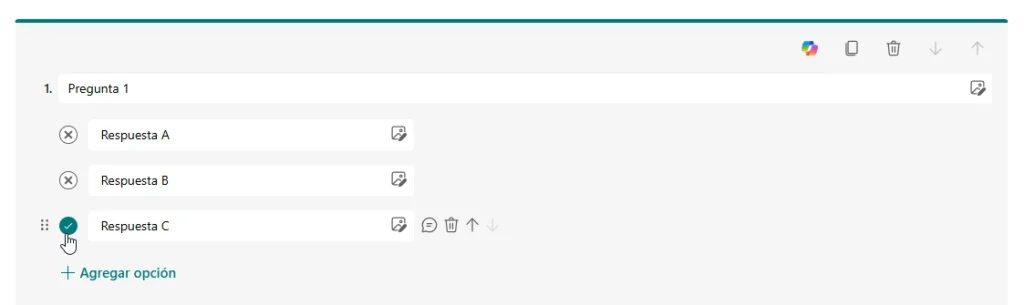
To turn your form into an assessment test:
Open each question and mark which answer is correct.
If you wish, assign different scores depending on the type of question or its difficulty.
You can also add comments or hints to reinforce learning.
Step 5: Share the form and analyze the results
When your questionnaire is ready:
Share the link with your team via email, Teams, or another internal channel.
Microsoft Forms will automatically collect responses in real time.
You’ll be able to see who has responded, which questions they got right, and calculate a final score.
Ideal for internal training, compliance assessments, or continuous learning tracking.
Do you need help? ABD Consulting supports you in your digital transformation

At ABD Consulting and IT Solutions, we help companies like yours digitalize their training, evaluation, and internal productivity processes.
We are experts in the Microsoft ecosystem and offer personalized consulting, practical training and technical support so you can make the most of tools like Copilot, Word, Forms, Teams, and SharePoint.
Whether you are just getting started with Microsoft 365 or want to take your current environment to the next level, our team in Seville supports you every step of the way.
