

Do you know how many environments you can have in Microsoft Dynamics 365 Business Central And how much storage do you have available? Knowing these aspects is important for properly organizing your ERP, running tests without affecting daily work, and keeping track of your tenant's storage capacity.
Microsoft Dynamics 365 Business Central Online lets you work with different environments within the same tenant. These environments make it easier to separate activities like daily operations, testing, development, or training. Plus, they all share a common storage capacity, which depends on the base capacity and the licenses you have.
In this article (and in this vídeo) we explain what types of environments Business Central includes, where you can check them, and how the available storage for your organization is calculated.
What are Business Central environments?
In Microsoft Dynamics 365 Business Central Online, a tenant can have different environments to organize work and carry out various activities without interfering with the company's usual operations.
Each tenant includes a production environment and allows you to have up to three additional environments that can be used for testing, development, training, or validations.
This separation is especially useful when a company needs to check changes or get certain tasks ready before taking them to their usual work environment.
For example, an organization can use:
- Production: to carry out daily activities and work with the company's real data.
- Tests: to check changes and validate certain processes before applying them.
- Development: to carry out work related to the customization or evolution of the solution.
- Training and validations: to familiarize users with the ERP or check new settings.
In this way, the different environments help organize work better and reduce the risk of tests or validations affecting daily activities.
How do you access the Business Central environments?
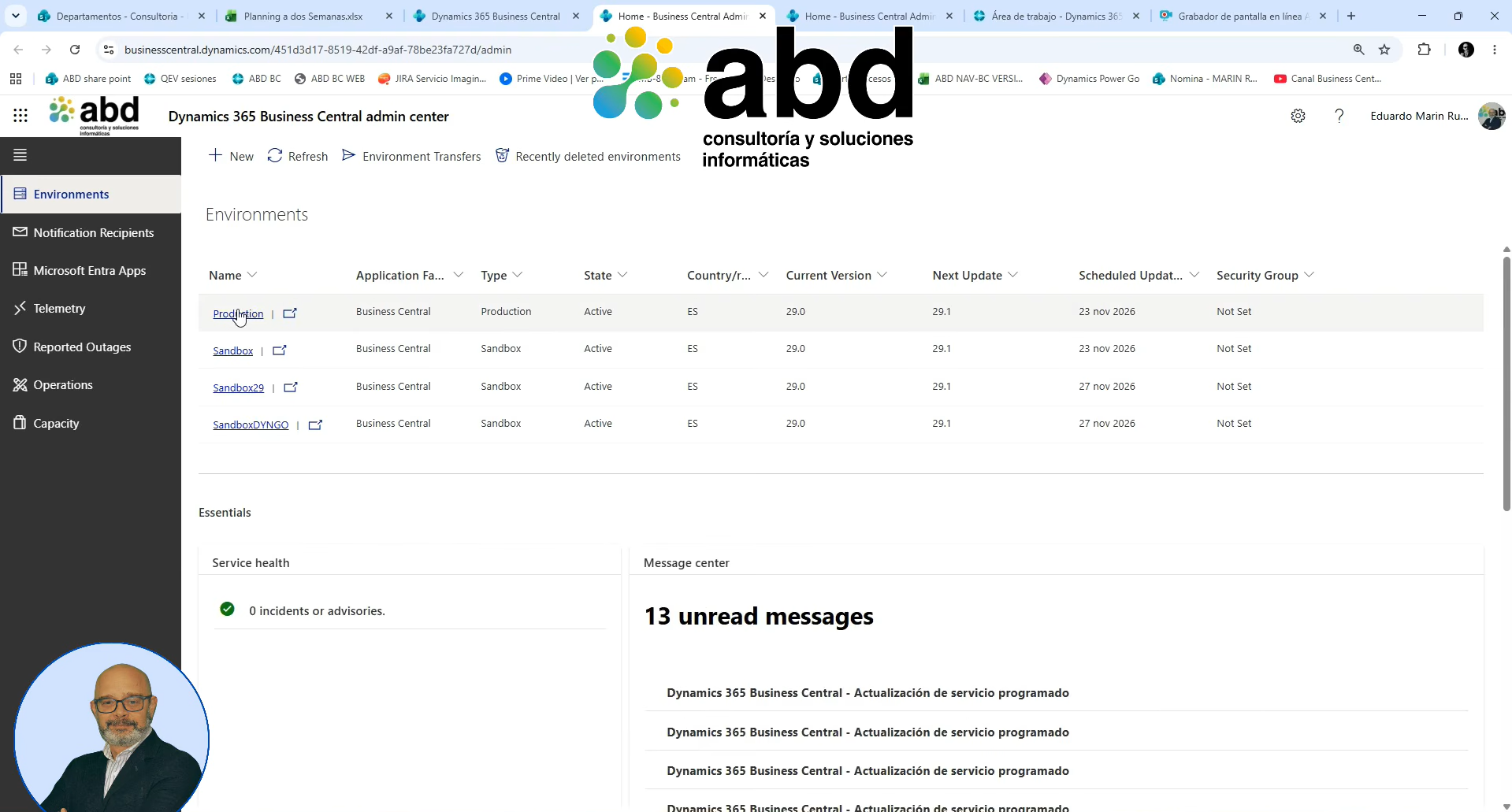
To check the available environments in a Business Central Online tenant, you can go to the Business Central admin center.
Access to the Administration Center is normally available from the Business Central settings menu.
From this section, it's possible to access information about the different environments of the tenant and see how the installation is organized.
Knowing this access is especially useful for ERP administrators and managers, as it allows them to check the available environments and better manage Business Central administration activities.
How much storage does Business Central Online include?
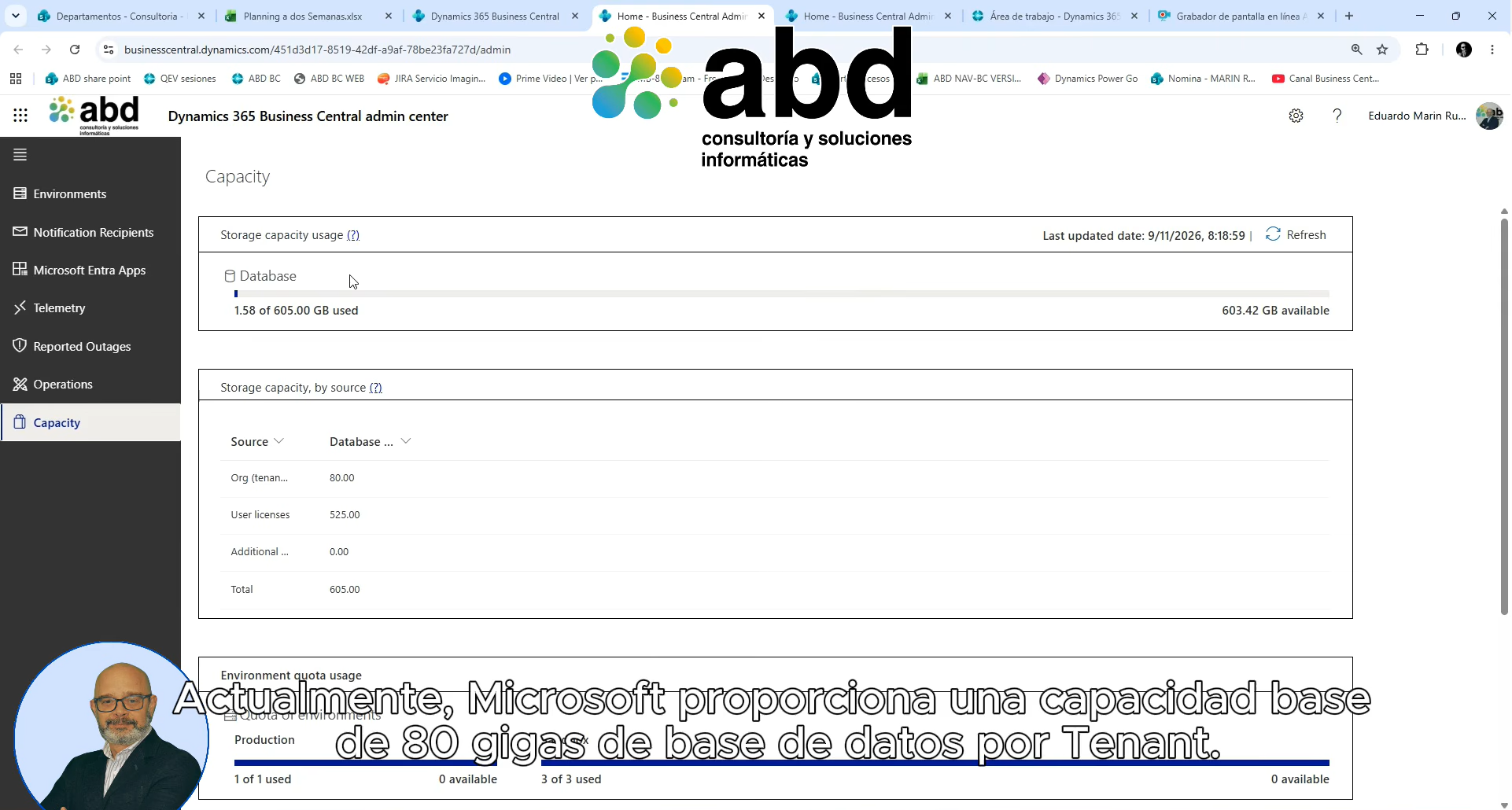
In addition to the available environments, another important aspect of managing Business Central is the storage capacity.
Business Central Online uses a Shared storage capacity for all environments of the same tenant. This means that the available space isn't allocated independently to each environment, but is shared among them.
According to the capabilities indicated in the reference content, Microsoft provides a basic capacity of 80 GB of database per tenant. To this amount, additional storage is added based on the licenses contracted.
Additional storage capacity depending on the licenses
The additional capacity indicated for each type of license is as follows:
| Type of license | Additional storage |
|---|---|
| Essential | 3 GB per user |
| Premium | 5 GB per user |
| Device | 1.5 GB per license |
| Team Member | It doesn't add any extra capacity |
Therefore, the total available storage depends on the tenant's base capacity and the licenses the organization has purchased.
Practical example: calculating storage in Business Central
Let's see how the total capacity is calculated with a simple example.
Imagine a company that has 20 users with an Essential license in Business Central Online.
The calculation would be as follows:
- Tenant base capacity: 80 GB.
- Additional storage per Essential user: 3 GB.
- Number of users: 20.
- Additional capacity: 20 × 3 GB = 60 GB.
Therefore, the total available capacity would be:
80 GB + 60 GB = 140 GB of storage.
This example helps understand how the number and type of licenses contracted affect the tenant's storage capacity.
It's important to remember that these 140 GB are shared among the different environments of the organization, they don't equate to 140 GB independently for each one.
Why is it important to control environments and storage?
Knowing the environment structure and available capacity helps manage Business Central more efficiently.
On one hand, having additional environments allows testing, development, and training without directly interfering with the production environment. On the other hand, knowing the available storage capacity makes it easier to plan the ERP usage and take the company's growth needs into account.
That's why it's a good idea for those responsible for Business Central to know both the available environments and the storage conditions associated with the licenses they've purchased.
Administra tus entornos de Business Central con ABD
Getting to know how the environments and storage of Microsoft Dynamics 365 Business Central Online work is a first step to better take advantage of your ERP management possibilities.
At ABD We help companies implement, manage, and optimize their Microsoft Dynamics 365 Business Central solutions, answering questions about their setup and supporting them as their work environment evolves.
Do you need help with Business Central administration or do you want to get to know your tenant's possibilities better? Get in touch with ABD and our team will advise you.