

Office 365 cuenta con más de 150 millones de buzones de correo. Esto ofrece la posibilidad de que el aprendizaje de este servicio cloud en cuanto a gestión del flujo de correo sea muy elevado.
Son millones de correos los que circulan por estos sistemas cada día, lo que hace que la gestión del correo spam o no deseado sea cada vez más eficaz. Aun así, pueden producirse casos en los que un correo legítimo sea identificado como no deseado o, por el contrario, que mensajes de spam lleguen a los buzones de los usuarios.
Como sabemos, Office 365 dispone de herramientas para gestionar todo este flujo de correo. En este artículo nos centraremos en cómo bloquear o permitir remitentes en Office 365 para adaptar el filtrado de correo electrónico a las necesidades de cada organización.
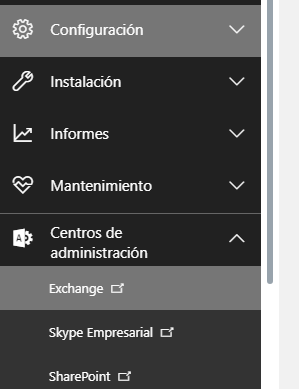
Acceder a la administración de Exchange Online
Para ello accedemos a la Administración de Exchange desde el portal de administración de Office 365.
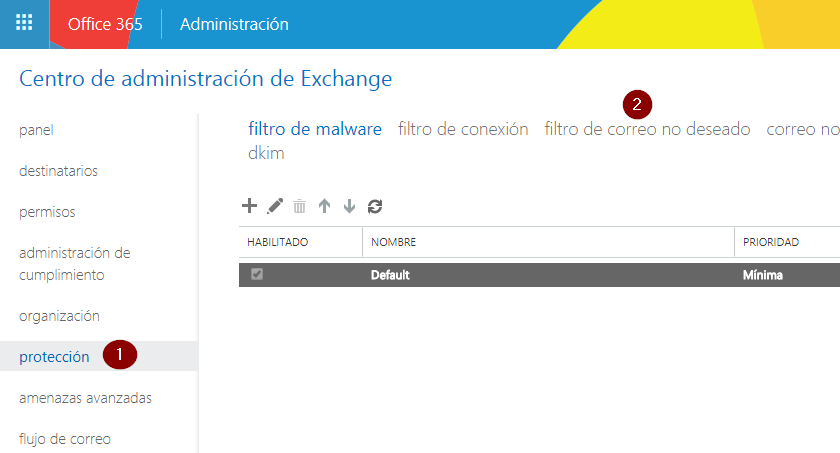
Abrir la configuración del filtro de correo no deseado
Una vez cargado, seleccionamos Protección y posteriormente Filtro de correo no deseado.
Editar la directiva de protección del dominio
Seleccionamos nuestro dominio y pulsamos Editar para modificar la directiva.

Cómo bloquear remitentes en Office 365
Dentro de la directiva encontraremos la opción Listas de bloqueados.
Desde aquí podremos añadir una o varias direcciones de correo electrónico que queramos bloquear.

Cómo permitir remitentes en Office 365
Del mismo modo, la opción Listas de permitidos permite crear una lista blanca con aquellos remitentes que siempre queremos aceptar.
Las direcciones se añaden mediante el botón +, pudiendo introducir varias direcciones separadas por punto y coma.

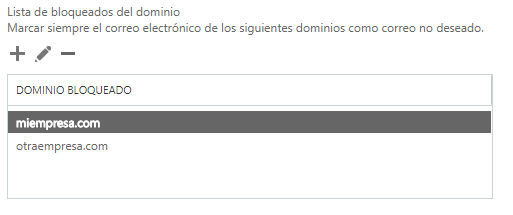
Permitir o bloquear dominios completos
Además de direcciones individuales, Office 365 permite bloquear o permitir dominios completos.
Esta opción resulta especialmente útil cuando queremos aceptar todos los correos procedentes de una empresa concreta o bloquear completamente un dominio desde el que recibimos spam.
Ventajas de gestionar los remitentes permitidos y bloqueados
Configurar correctamente estas listas ofrece diferentes beneficios:
- Reducir el correo no deseado.
- Evitar falsos positivos.
- Mejorar la seguridad del correo electrónico.
- Controlar qué mensajes reciben los usuarios.
- Adaptar Exchange Online a las necesidades de la organización.
Conclusion
Como hemos visto, bloquear o permitir remitentes en Office 365 es una configuración sencilla que ayuda a mejorar la seguridad y el control del correo electrónico corporativo.
Gestionando correctamente las listas de remitentes y dominios permitidos o bloqueados podremos reducir incidencias relacionadas con el spam y asegurarnos de que los mensajes importantes llegan correctamente a los usuarios.
En futuras publicaciones seguiremos compartiendo nuevas recomendaciones sobre Exchange Online, Microsoft 365 y seguridad del correo electrónico.
ABD te ayuda a mejorar la seguridad de Microsoft 365
At ABD ayudamos a empresas a sacar el máximo partido a Microsoft 365 mediante servicios de consultoría, implantación y soporte especializado. Si necesitas mejorar la seguridad del correo electrónico, optimizar Exchange Online o configurar correctamente las políticas de protección frente al spam y al phishing, nuestro equipo puede ayudarte.
Contact us y descubre cómo proteger mejor el correo de tu organización.