

 In Business Central, sending documents by email requires configuring an SMTP server with an email account. It is possible to configure this using a Gmail account, and for this we have two alternatives:
a) Enable the POP and IMAP features in the email settings and activate “Less secure app access” from the account configuration. However, this option is not recommended for security reasons.
b) The second method is the most secure and consists of enabling two‑factor authentication and generating an app‑specific password, which will be entered as the password in Business Central’s SMTP configuration instead of the regular Gmail account login password.
Let’s look at it step by step.
- First, configure your Gmail account with Two‑Step Verification enabled.

2. In Business Central, with the initial SMTP setup, if you try to authenticate using your regular Gmail login password, you will receive the following error:

The error might seem to indicate that the password is incorrect; however, due to Gmail’s security measures, what it actually means is that you must generate an app‑specific password.
3. In your Gmail Account Settings, generate an app‑specific password.
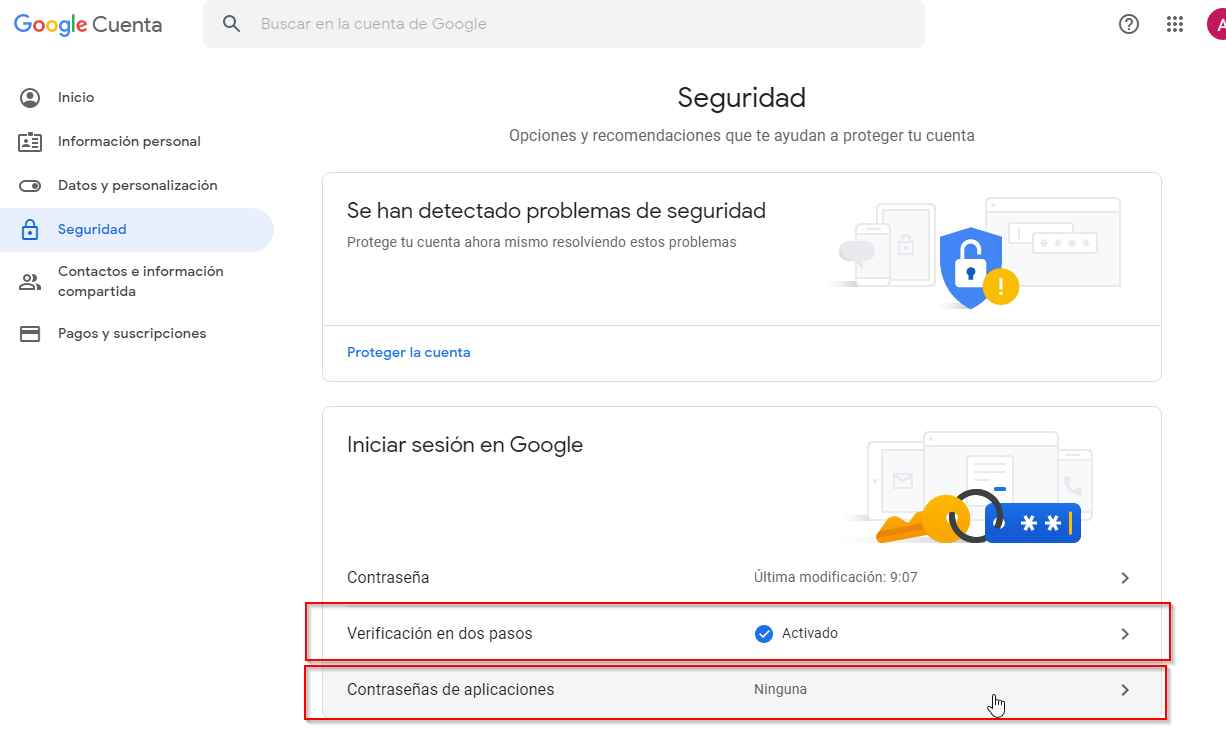
Go to the “App passwords” option.

Select “Mail” and “Windows Computer”, then click GENERATE.

Copy the full password shown in this window to your clipboard or store it somewhere safe.
4. In Business Central, in the SMTP Setup, enter the password generated in the previous step into the “Password” field.

Then perform a test email.

Check the recipient’s inbox, and you should see the test email has arrived.
If you would like more information, please contact ABD Consulting and IT Solutions.