

How to create custom templates in Outlook OWA 365?
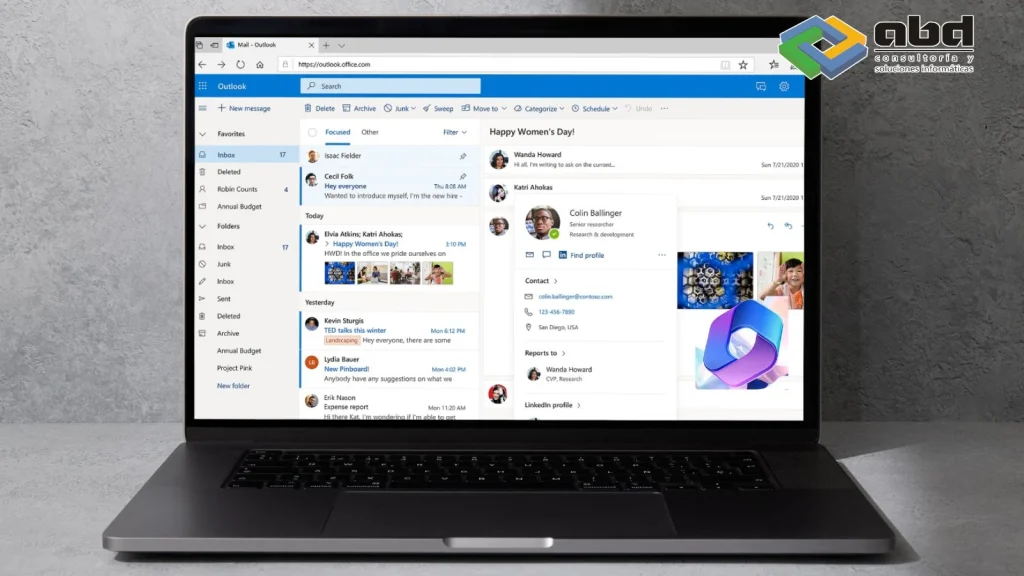
Do you write the same things too many times when sending or replying to your emails?
Do you want to save time on this?
I invite you to keep reading so we can show you how to create your own templates in Outlook and in Web Access (OWA), allowing you to reply quickly to emails that require similar responses without having to edit the same content each time.
Steps to create templates in Outlook OWA 365
To demonstrate it, we will do it directly in OWA and then see how to retrieve it in Outlook as well.
We simply need to access our OWA. Then we go to create a new email:

Next, we select the “My Templates” button:
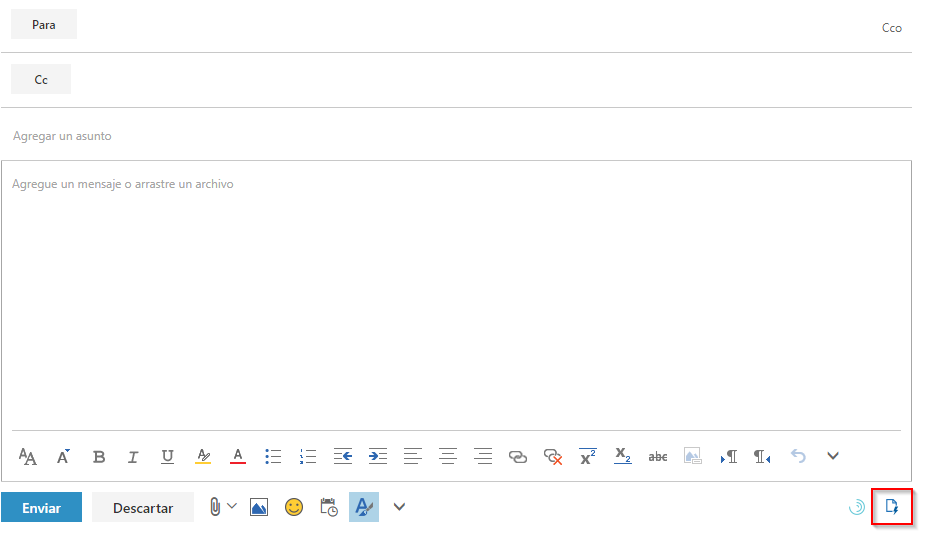
Some templates will appear, but by selecting “+Template” you can add your own custom ones. You can also edit and delete the existing ones.
Now we edit it and save it:

Once created, we just need to select the “My Templates” button again and choose the one or ones we want. Our email will be ready to send in just a few seconds.
We can also access, use, or create new templates from Outlook. To do this, we open Outlook and select the command to create a “New Email”.
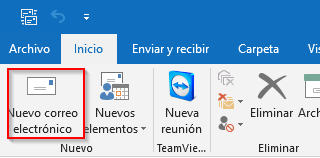
Next, in the top task ribbon, we click on “Office Add-ins”

The add-ins we have installed will appear. We double‑click the one we’re interested in, in this case, My Templates.
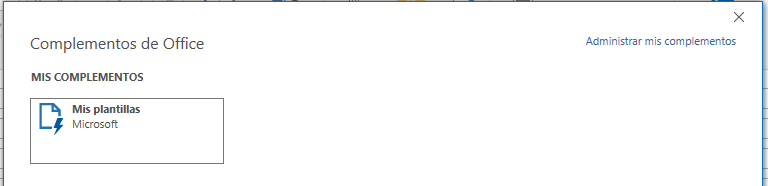
And we proceed in the same way as we explained with OWA. The templates we previously created in OWA will appear here, and vice versa.

Contact us and we will help you with Outlook and Microsoft 365
If you would like more information or support so we can assist you, please contact us and we will guide you through the setup.
